How to Build a Language and Region Picker in Flutter (Full Code + Preview)
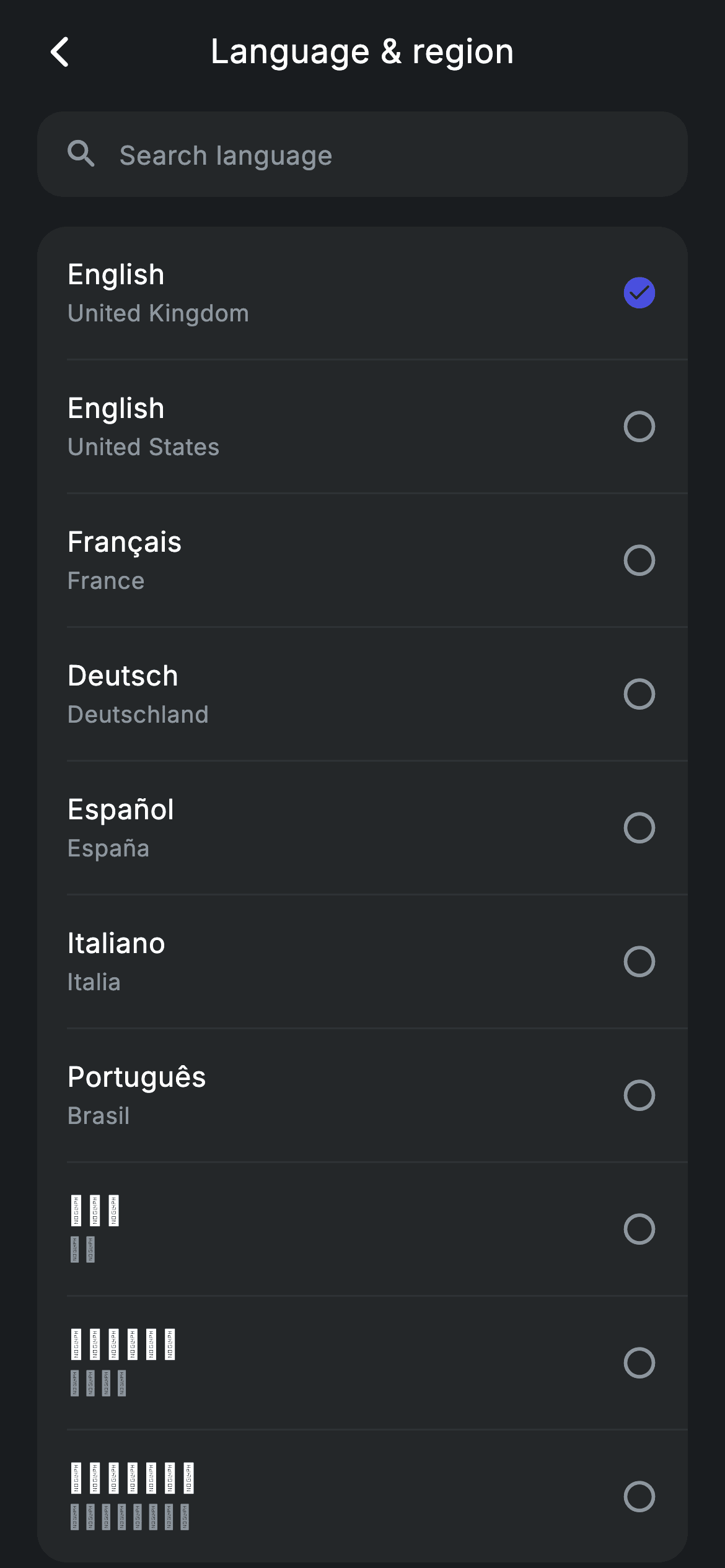
Most language pickers are one list and one bug: filter the rows, then write the tapped position back to state and watch the wrong language get selected. This screen avoids it by filtering indices instead of rows, so a selection always refers to the same entry no matter what is typed in the search box. You'll build a settings card of ten languages named in their own scripts, a live search that matches the language or the region, and a row that marks the current choice with a filled check.
Watch the Flutter UI walkthrough
A short screen recording of Language & region running, if you'd rather see it before you read the code. The written tutorial below covers everything in it.
Can't see the video? Watch it on YouTube.
What you'll build
- ✓A search filter that returns indices, so filtering can never renumber the selection
- ✓A language list where each entry is written in its own script, not translated
- ✓A settings card with hairlines between rows and none at the edges
- ✓A selection row that swaps a filled check for an empty ring instead of moving anything
- ✓The shared app bar and search shell this whole settings family reuses
Step-by-step build
Create the file
Add a new file at lib/fintech_language/fintech_language_screen.dart in your Flutter project.
Register the bundled fonts
No external packages — this is pure Flutter. It does bundle its design font (Inter), so drop the font file into fonts/ and declare it in pubspec.yaml:
flutter:
  fonts:
    - family: Inter
      fonts:
- asset: fonts/Inter-Regular.ttfBuild it, piece by piece
Here's how the screen goes together. Each block below is a real slice of the code with a plain-English explanation — paste them in order, or grab the whole file from the next section.
Languages in their own scripts
import 'package:flutter/material.dart';

/// Language & region — pick an app language (Revolut-inspired design system).
///
/// Self-contained per CONVENTIONS.md: pure Flutter only, the exact design font
/// (Inter) is bundled under `fonts/`, no network/emoji images, and the screen
/// forces its own dark theme. A live search filters the language list; the
/// selected language is marked.
class FintechLanguageScreen extends StatefulWidget {
  const FintechLanguageScreen({super.key, this.onBack});

  final VoidCallback? onBack;

  @override
  State<FintechLanguageScreen> createState() => _FintechLanguageScreenState();
}

class _FintechLanguageScreenState extends State<FintechLanguageScreen> {
  static const String _font = 'Inter';
  static const Color _bg = Color(0xFF191C1F);
  static const Color _surface = Color(0xFF242729);
  static const Color _brand = Color(0xFF494FDF);
  static const Color _muted = Color(0xFF8D969E);
  static const Color _hairline = Color(0xFF2E3235);

  static const List<List<String>> _langs = <List<String>>[
    <String>['English', 'United Kingdom'],
    <String>['English', 'United States'],
    <String>['Français', 'France'],
    <String>['Deutsch', 'Deutschland'],
    <String>['Español', 'España'],
    <String>['Italiano', 'Italia'],
    <String>['Português', 'Brasil'],
    <String>['日本語', '日本'],
    <String>['हिन्दी', 'भारत'],
    <String>['العربية', 'الإمارات'],
  ];
The data is a `List<List<String>>` of `[language, region]` pairs, and the important choice is in the strings themselves: `日本語 / 日本`, `हिन्दी / भारत`, `العربية / الإمارات`. A language list is the one place in an app that must never be translated into the current language — someone who has accidentally set the app to German needs to find 'Français', not 'Französisch'. The region is the second field because the list carries two 'English' rows, and 'United Kingdom' versus 'United States' is the only thing that tells them apart.
Filtering indices, not rows
  int _selected = 0;
  String _query = '';

  List<int> get _visible {
    final List<int> idx = <int>[];
    for (int i = 0; i < _langs.length; i++) {
      if (_query.isEmpty ||
          _langs[i][0].toLowerCase().contains(_query.toLowerCase()) ||
          _langs[i][1].toLowerCase().contains(_query.toLowerCase())) {
        idx.add(i);
      }
    }
    return idx;
  }
`_visible` walks `_langs` and returns a `List<int>` of the positions that match — never a filtered copy of the data. This is the crux of the screen. `_selected` is an index into `_langs`, so if the search returned a shortened *list* instead, the third visible row would be index 2 in the filtered list and something else entirely in the real one, and tapping it would select the wrong language. Returning positions keeps one numbering system for the whole screen. The match tests both the language and the region field, so typing 'brasil' finds Português.
One card, rows resolved through the index list
  @override
  Widget build(BuildContext context) {
    final List<int> visible = _visible;
    return Theme(
      data: ThemeData.dark(useMaterial3: true),
      child: Scaffold(
        backgroundColor: _bg,
        body: SafeArea(
          child: Column(
            children: <Widget>[
              _buildAppBar(),
              _buildSearch(),
              Expanded(
                child: ListView(
                  physics: const BouncingScrollPhysics(),
                  padding: const EdgeInsets.fromLTRB(20, 8, 20, 24),
                  children: <Widget>[
                    Container(
                      decoration: BoxDecoration(
                        color: _surface,
                        borderRadius: BorderRadius.circular(16),
                      ),
                      child: Column(
                        children: <Widget>[
                          for (int j = 0; j < visible.length; j++) ...<Widget>[
                            if (j != 0)
                              const Divider(height: 1, color: _hairline, indent: 16),
                            _row(visible[j]),
                          ],
                        ],
                      ),
                    ),
                  ],
                ),
              ),
            ],
          ),
        ),
      ),
    );
  }
`build` resolves `_visible` once into `visible`, then the card's children come from a collection-for over `visible.length` that spreads a guarded `Divider` and `_row(visible[j])`. Two counters are in play and they do different jobs: `j` walks the visible positions and decides where hairlines go, while `visible[j]` is the real index handed to the row. The `if (j != 0)` guard keeps separators strictly between rows, so a filtered list of one shows a clean card with no stray line. The divider's `indent: 16` matches the row's own horizontal padding, so it starts exactly where the text does.
The settings shell: app bar and search
  Widget _buildAppBar() {
    return Padding(
      padding: const EdgeInsets.fromLTRB(8, 4, 8, 4),
      child: Row(
        children: <Widget>[
          IconButton(
            onPressed: widget.onBack,
            icon: const Icon(Icons.arrow_back_ios_new_rounded,
                size: 20, color: Colors.white),
          ),
          const Expanded(
            child: Text(
              'Language & region',
              textAlign: TextAlign.center,
              style: TextStyle(
                fontFamily: _font,
                fontSize: 18,
                fontWeight: FontWeight.w500,
                letterSpacing: 0.24,
                color: Colors.white,
              ),
            ),
          ),
          const SizedBox(width: 48),
        ],
      ),
    );
  }

  Widget _buildSearch() {
    return Padding(
      padding: const EdgeInsets.fromLTRB(20, 4, 20, 8),
      child: Container(
        height: 46,
        padding: const EdgeInsets.symmetric(horizontal: 14),
        decoration: BoxDecoration(
          color: _surface,
          borderRadius: BorderRadius.circular(14),
        ),
        child: Row(
          children: <Widget>[
            const Icon(Icons.search_rounded, size: 20, color: _muted),
            const SizedBox(width: 10),
            Expanded(
              child: TextField(
                onChanged: (String v) => setState(() => _query = v),
                cursorColor: _brand,
                style: const TextStyle(
                  fontFamily: _font,
                  fontSize: 14,
                  letterSpacing: 0.24,
                  color: Colors.white,
                ),
                decoration: const InputDecoration(
                  isDense: true,
                  border: InputBorder.none,
                  hintText: 'Search language',
                  hintStyle: TextStyle(
                    fontFamily: _font,
                    fontSize: 14,
                    letterSpacing: 0.24,
                    color: _muted,
                  ),
                ),
              ),
            ),
          ],
        ),
      ),
    );
  }
These two builders are the shell every Nova settings screen shares — a back button, a centred title balanced by a fixed 48px spacer on the right, and a 46px rounded search box. The `TextField` inside it is stripped with `border: InputBorder.none` and `isDense: true` so Material adds neither an underline nor its default padding, and `cursorColor: _brand` is the one spot of indigo in an otherwise grey field. The hint reads 'Search language' rather than a generic 'Search', which is worth the extra word on a screen that also contains region names.
The row, and what selection looks like
  Widget _row(int i) {
    final bool sel = _selected == i;
    return InkWell(
      onTap: () => setState(() => _selected = i),
      child: Padding(
        padding: const EdgeInsets.symmetric(horizontal: 16, vertical: 15),
        child: Row(
          children: <Widget>[
            Expanded(
              child: Column(
                crossAxisAlignment: CrossAxisAlignment.start,
                children: <Widget>[
                  Text(
                    _langs[i][0],
                    style: const TextStyle(
                      fontFamily: _font,
                      fontSize: 15,
                      fontWeight: FontWeight.w500,
                      letterSpacing: 0.24,
                      color: Colors.white,
                    ),
                  ),
                  const SizedBox(height: 2),
                  Text(
                    _langs[i][1],
                    style: const TextStyle(
                      fontFamily: _font,
                      fontSize: 12.5,
                      letterSpacing: 0.24,
                      color: _muted,
                    ),
                  ),
                ],
              ),
            ),
            if (sel)
              const Icon(Icons.check_circle_rounded, size: 20, color: _brand)
            else
              const Icon(Icons.radio_button_unchecked_rounded,
                  size: 20, color: _muted),
          ],
        ),
      ),
    );
  }
`_row` takes the real index, computes `final bool sel = _selected == i`, and wraps everything in an `InkWell` whose `onTap` writes that same index back through `setState`. The language sits at 15px `w500` over the region at 12.5px in `_muted`. On the right, `if (sel)` swaps `Icons.check_circle_rounded` in `_brand` for `Icons.radio_button_unchecked_rounded` in grey. Both glyphs are 20px and both are always present, so selecting a language changes only colour and shape — nothing reflows, and the list does not twitch as the choice moves.
Full code
The complete, ready-to-paste source. Free to use in your projects — one click copies it all.
import 'package:flutter/material.dart';

/// Language & region — pick an app language (Revolut-inspired design system).
///
/// Self-contained per CONVENTIONS.md: pure Flutter only, the exact design font
/// (Inter) is bundled under `fonts/`, no network/emoji images, and the screen
/// forces its own dark theme. A live search filters the language list; the
/// selected language is marked.
class FintechLanguageScreen extends StatefulWidget {
  const FintechLanguageScreen({super.key, this.onBack});

  final VoidCallback? onBack;

  @override
  State<FintechLanguageScreen> createState() => _FintechLanguageScreenState();
}

class _FintechLanguageScreenState extends State<FintechLanguageScreen> {
  static const String _font = 'Inter';
  static const Color _bg = Color(0xFF191C1F);
  static const Color _surface = Color(0xFF242729);
  static const Color _brand = Color(0xFF494FDF);
  static const Color _muted = Color(0xFF8D969E);
  static const Color _hairline = Color(0xFF2E3235);

  static const List<List<String>> _langs = <List<String>>[
    <String>['English', 'United Kingdom'],
    <String>['English', 'United States'],
    <String>['Français', 'France'],
    <String>['Deutsch', 'Deutschland'],
    <String>['Español', 'España'],
    <String>['Italiano', 'Italia'],
    <String>['Português', 'Brasil'],
    <String>['日本語', '日本'],
    <String>['हिन्दी', 'भारत'],
    <String>['العربية', 'الإمارات'],
  ];

  int _selected = 0;
  String _query = '';

  List<int> get _visible {
    final List<int> idx = <int>[];
    for (int i = 0; i < _langs.length; i++) {
      if (_query.isEmpty ||
          _langs[i][0].toLowerCase().contains(_query.toLowerCase()) ||
          _langs[i][1].toLowerCase().contains(_query.toLowerCase())) {
        idx.add(i);
      }
    }
    return idx;
  }

  @override
  Widget build(BuildContext context) {
    final List<int> visible = _visible;
    return Theme(
      data: ThemeData.dark(useMaterial3: true),
      child: Scaffold(
        backgroundColor: _bg,
        body: SafeArea(
          child: Column(
            children: <Widget>[
              _buildAppBar(),
              _buildSearch(),
              Expanded(
                child: ListView(
                  physics: const BouncingScrollPhysics(),
                  padding: const EdgeInsets.fromLTRB(20, 8, 20, 24),
                  children: <Widget>[
                    Container(
                      decoration: BoxDecoration(
                        color: _surface,
                        borderRadius: BorderRadius.circular(16),
                      ),
                      child: Column(
                        children: <Widget>[
                          for (int j = 0; j < visible.length; j++) ...<Widget>[
                            if (j != 0)
                              const Divider(height: 1, color: _hairline, indent: 16),
                            _row(visible[j]),
                          ],
                        ],
                      ),
                    ),
                  ],
                ),
              ),
            ],
          ),
        ),
      ),
    );
  }

  Widget _buildAppBar() {
    return Padding(
      padding: const EdgeInsets.fromLTRB(8, 4, 8, 4),
      child: Row(
        children: <Widget>[
          IconButton(
            onPressed: widget.onBack,
            icon: const Icon(Icons.arrow_back_ios_new_rounded,
                size: 20, color: Colors.white),
          ),
          const Expanded(
            child: Text(
              'Language & region',
              textAlign: TextAlign.center,
              style: TextStyle(
                fontFamily: _font,
                fontSize: 18,
                fontWeight: FontWeight.w500,
                letterSpacing: 0.24,
                color: Colors.white,
              ),
            ),
          ),
          const SizedBox(width: 48),
        ],
      ),
    );
  }

  Widget _buildSearch() {
    return Padding(
      padding: const EdgeInsets.fromLTRB(20, 4, 20, 8),
      child: Container(
        height: 46,
        padding: const EdgeInsets.symmetric(horizontal: 14),
        decoration: BoxDecoration(
          color: _surface,
          borderRadius: BorderRadius.circular(14),
        ),
        child: Row(
          children: <Widget>[
            const Icon(Icons.search_rounded, size: 20, color: _muted),
            const SizedBox(width: 10),
            Expanded(
              child: TextField(
                onChanged: (String v) => setState(() => _query = v),
                cursorColor: _brand,
                style: const TextStyle(
                  fontFamily: _font,
                  fontSize: 14,
                  letterSpacing: 0.24,
                  color: Colors.white,
                ),
                decoration: const InputDecoration(
                  isDense: true,
                  border: InputBorder.none,
                  hintText: 'Search language',
                  hintStyle: TextStyle(
                    fontFamily: _font,
                    fontSize: 14,
                    letterSpacing: 0.24,
                    color: _muted,
                  ),
                ),
              ),
            ),
          ],
        ),
      ),
    );
  }

  Widget _row(int i) {
    final bool sel = _selected == i;
    return InkWell(
      onTap: () => setState(() => _selected = i),
      child: Padding(
        padding: const EdgeInsets.symmetric(horizontal: 16, vertical: 15),
        child: Row(
          children: <Widget>[
            Expanded(
              child: Column(
                crossAxisAlignment: CrossAxisAlignment.start,
                children: <Widget>[
                  Text(
                    _langs[i][0],
                    style: const TextStyle(
                      fontFamily: _font,
                      fontSize: 15,
                      fontWeight: FontWeight.w500,
                      letterSpacing: 0.24,
                      color: Colors.white,
                    ),
                  ),
                  const SizedBox(height: 2),
                  Text(
                    _langs[i][1],
                    style: const TextStyle(
                      fontFamily: _font,
                      fontSize: 12.5,
                      letterSpacing: 0.24,
                      color: _muted,
                    ),
                  ),
                ],
              ),
            ),
            if (sel)
              const Icon(Icons.check_circle_rounded, size: 20, color: _brand)
            else
              const Icon(Icons.radio_button_unchecked_rounded,
                  size: 20, color: _muted),
          ],
        ),
      ),
    );
  }
}
Plus bundled 1 binary asset (fonts/images). The CLI and MCP install those for you automatically.
Two faster ways to add it
Copy-paste works, but you can skip it entirely.
1. FlutterKit CLI
One command drops this screen — and its fonts — straight into your project.
$ flutterkit add fintech-language2. AI agent (MCP)
Connect FlutterKit's MCP server in Claude or Cursor and just ask your agent to install fintech-language — it fetches and writes the files for you.
FAQ
How do I actually change the app's language when a row is tapped?
The screen only tracks the choice; `onTap` writes to `_selected` and nothing else. Add a callback parameter alongside `onBack`, pass the picked entry up, and let the parent set your app's locale. Keeping the switch outside the widget is why it drops into any localisation setup without changes.
Why is the list stored as a list of lists rather than a model class?
It is a compact table of two fixed fields, so `_langs[i][0]` and `[i][1]` are enough and the file stays short. Once you add a locale code, a flag or an RTL flag, swap it for a small class — the index-based filtering above works exactly the same either way.
Does this handle right-to-left languages?
The Arabic entry renders correctly because Flutter shapes the text itself, but the screen's own layout stays left-to-right. Mirroring the whole UI is a `Directionality` concern that belongs at the app level once a right-to-left locale is actually applied, not in this picker.
Does it need any packages or fonts?
No packages — just `material.dart`. Inter ships bundled with the screen and covers the Latin rows; the Japanese, Hindi and Arabic entries fall through to the platform's own system fonts, which is exactly what you want rather than shipping four extra font files.
Which Flutter version does this need?
Flutter 3.22 or newer for the `super.key` constructor form and Material 3 defaults. There are no `withValues` calls in this file, so on an older SDK you only need to expand the constructor to `{Key? key}) : super(key: key)` and it compiles as-is.


