How to Build a Search Nearby Map Screen in Flutter (Full Code + Preview)
Map screens are mostly a layering problem: one full-bleed surface at the back, floating chrome in front, and nothing allowed to overlap the wrong thing. This tutorial builds the Finco kit's 'Search Nearby' screen as three stacked layers — a map filling the whole window, an overlay column carrying a floating search bar and the numbered pin artwork with a locate-me button, and the app's bottom nav pinned last so it always wins. Swap the map image for Google Maps or Mapbox and the chrome stays exactly where it is.
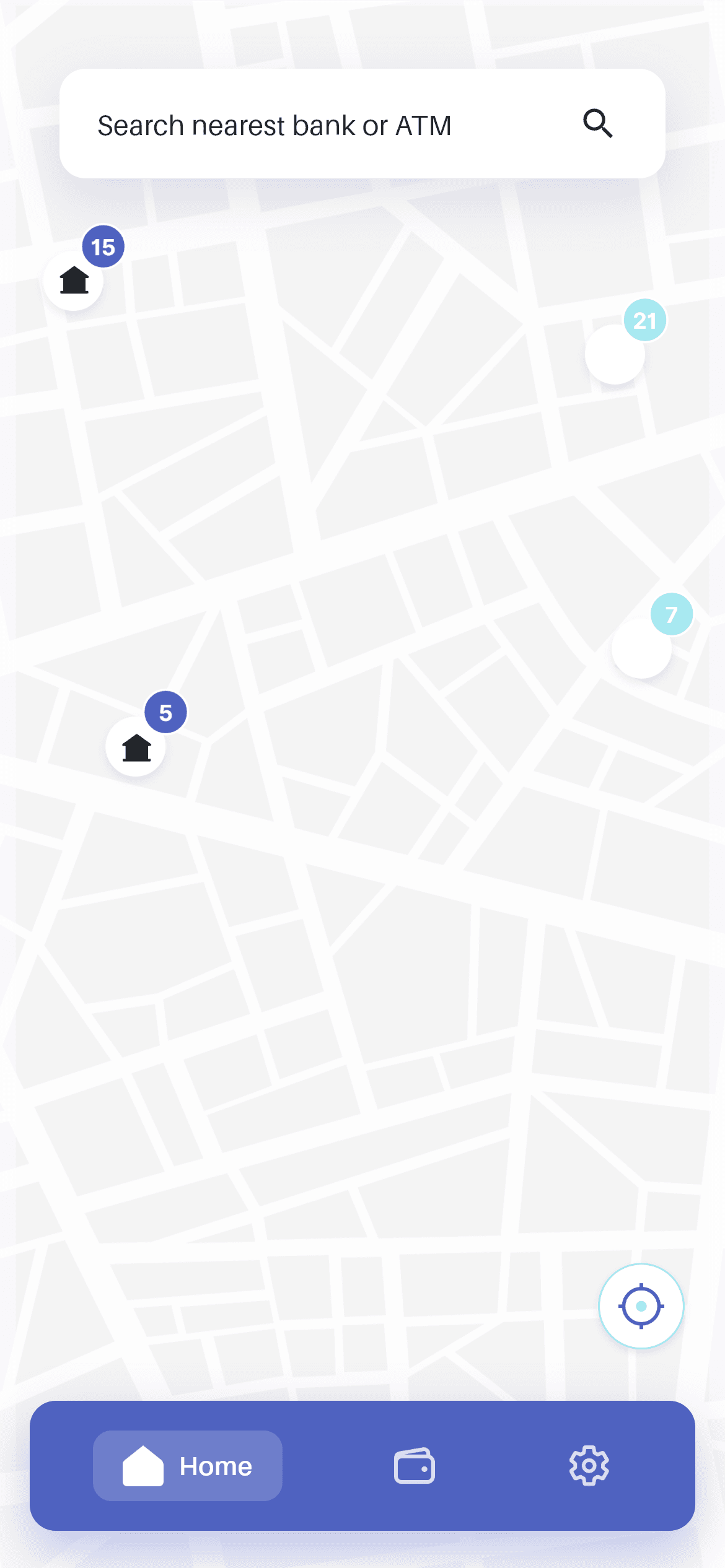
What you'll build
- ✓A three-layer Stack where a Positioned.fill map sits behind all the floating chrome
- ✓A search bar with a wide, soft navy shadow that lifts it visually off the map
- ✓An Expanded pin overlay that scales to fit rather than overflowing on short screens
- ✓A locate-me button with a 0.94 press scale, positioned by Alignment instead of hard-coded offsets
- ✓Selective SafeArea (bottom: false on the overlay, top: false on the nav) so each layer handles its own inset
Step-by-step build
Create the file
Add a new file at lib/wallet_search_nearby/wallet_search_nearby_screen.dart in your Flutter project.
Register the bundled fonts
No external packages — this is pure Flutter. It does bundle its design font (Aileron), so drop the font file into fonts/ and declare it in pubspec.yaml:
flutter:
  fonts:
    - family: Aileron
      fonts:
- asset: fonts/Aileron-Regular.ttfBuild it, piece by piece
Here's how the screen goes together. Each block below is a real slice of the code with a plain-English explanation — paste them in order, or grab the whole file from the next section.
The full-bleed map layer
import 'package:flutter/material.dart';

import 'widgets/bottom_nav.dart';
import 'widgets/palette.dart';

/// "Search Nearby" screen from the Wallet App UI Kit (Finco): a full-bleed map
/// with a floating search bar, location pins, a "locate me" button and the
/// bottom nav.
///
/// Self-contained, pure Flutter. Bundles its exact design font (Aileron) and
/// the kit's map art + icons. Fully responsive — the map fills any size, the
/// pin overlay scales to fit and width caps on large screens. Renders
/// standalone when pushed as a route.
class WalletSearchNearbyScreen extends StatefulWidget {
  const WalletSearchNearbyScreen({super.key});

  @override
  State<WalletSearchNearbyScreen> createState() =>
      _WalletSearchNearbyScreenState();
}

class _WalletSearchNearbyScreenState extends State<WalletSearchNearbyScreen> {
  int _navIndex = 0;

  @override
  Widget build(BuildContext context) {
    return Scaffold(
      backgroundColor: P.bg,
      body: Stack(
        children: <Widget>[
          // Full-bleed map.
          Positioned.fill(
            child: Image.asset(
              '${P.img}/map.png',
              fit: BoxFit.cover,
              filterQuality: FilterQuality.high,
            ),
          ),
The screen is a StatefulWidget for one reason: _navIndex, the selected bottom-nav tab. The body is a Stack, and its first child is the layer everything else sits on — Positioned.fill wrapping Image.asset with fit: BoxFit.cover. Positioned.fill is the idiomatic way to say 'stretch to every edge of the Stack', and BoxFit.cover guarantees the map covers the whole window even when the device aspect ratio doesn't match the artwork, cropping rather than letterboxing. filterQuality: FilterQuality.high keeps it from looking blocky when scaled up.
The floating search bar
          // Overlay content.
          SafeArea(
            bottom: false,
            child: Center(
              child: ConstrainedBox(
                constraints: const BoxConstraints(maxWidth: 480),
                child: Column(
                  children: <Widget>[
                    const SizedBox(height: 37),
                    const Padding(
                      padding: EdgeInsets.symmetric(horizontal: 32),
                      child: _SearchBar(),
                    ),
                    const SizedBox(height: 24),
The second Stack child is the overlay content, wrapped in SafeArea(bottom: false) — the top inset is honoured so the search bar clears the notch, but the bottom is deliberately left alone because the nav bar in layer three handles its own inset. Center + ConstrainedBox(maxWidth: 480) keeps the chrome from spreading across a tablet even though the map still fills the screen behind it. Then 37px of top space and the _SearchBar, inset 32px on each side so it floats clear of the screen edges.
The pin overlay and locate button
                    // Pin overlay — scales to fit, never overflows.
                    Expanded(
                      child: Padding(
                        padding: const EdgeInsets.fromLTRB(16, 0, 16, 110),
                        child: Stack(
                          children: <Widget>[
                            Align(
                              alignment: Alignment.topCenter,
                              child: Image.asset(
                                '${P.img}/locationspots.png',
                                fit: BoxFit.contain,
                                filterQuality: FilterQuality.high,
                              ),
                            ),
                            Align(
                              alignment: Alignment.bottomRight,
                              child: _LocateButton(onTap: () {}),
                            ),
                          ],
                        ),
                      ),
                    ),
                  ],
                ),
              ),
            ),
          ),
          // Bottom nav.
          Align(
            alignment: Alignment.bottomCenter,
            child: SafeArea(
              top: false,
              child: BottomNav(
                currentIndex: _navIndex,
                onChanged: (int i) => setState(() => _navIndex = i),
              ),
            ),
          ),
        ],
      ),
    );
  }
}
The pin artwork lives inside an Expanded, which is what makes this screen safe on short devices: the image gets whatever height is left over after the search bar, and fit: BoxFit.contain shrinks it to fit rather than overflowing. Inside that Expanded is a nested Stack with two Aligns — topCenter for the location pins, bottomRight for the locate-me button — so both are positioned relatively rather than with magic pixel offsets. The Padding's bottom value of 110 reserves room for the nav bar. The third and final Stack child is that nav, in Align(bottomCenter) with SafeArea(top: false); being last in the Stack means it paints above everything.
The search bar's lift
class _SearchBar extends StatelessWidget {
  const _SearchBar();

  @override
  Widget build(BuildContext context) {
    return Container(
      height: 59,
      decoration: BoxDecoration(
        color: Colors.white,
        borderRadius: BorderRadius.circular(14),
        boxShadow: <BoxShadow>[
          BoxShadow(
            color: const Color(0xFF29304D).withValues(alpha: 0.12),
            blurRadius: 24,
            offset: const Offset(0, 10),
          ),
        ],
      ),
      child: const Row(
        children: <Widget>[
          SizedBox(width: 20),
          Expanded(
            child: TextField(
              cursorColor: P.blue,
              style: TextStyle(
                fontFamily: P.font,
                fontSize: 15,
                color: Color(0xFF33373B),
              ),
              decoration: InputDecoration(
                hintText: 'Search nearest bank or ATM',
                hintStyle: TextStyle(
                  fontFamily: P.font,
                  fontSize: 15,
                  letterSpacing: 0.15,
                  color: Color(0xFF33373B),
                ),
                isDense: true,
                border: InputBorder.none,
              ),
            ),
          ),
          Padding(
            padding: EdgeInsets.only(right: 25),
            child: Icon(Icons.search, size: 22, color: P.ink),
          ),
        ],
      ),
    );
  }
}
_SearchBar is a fixed 59px-tall white Container with a 14px radius, and its shadow is what sells the floating effect: navy #29304D at just 12% alpha, blurred a generous 24px and offset 10px down. A wide, faint shadow reads as height above a busy map, where a tight dark one would read as a border. The TextField inside is stripped of Material decoration (border: InputBorder.none, isDense: true) so the Container is the only visible box, and the hint carries letterSpacing: 0.15 to match the design. As on the other kit screens, the search icon is a Row sibling rather than a suffixIcon, giving exact control over its 25px right padding.
The locate-me button
class _LocateButton extends StatefulWidget {
  const _LocateButton({required this.onTap});

  final VoidCallback onTap;

  @override
  State<_LocateButton> createState() => _LocateButtonState();
}

class _LocateButtonState extends State<_LocateButton> {
  bool _pressed = false;

  @override
  Widget build(BuildContext context) {
    return GestureDetector(
      onTapDown: (_) => setState(() => _pressed = true),
      onTapUp: (_) => setState(() => _pressed = false),
      onTapCancel: () => setState(() => _pressed = false),
      onTap: widget.onTap,
      child: AnimatedScale(
        scale: _pressed ? 0.94 : 1,
        duration: const Duration(milliseconds: 150),
        child: Image.asset(
          '${P.img}/location_img.png',
          width: 58,
          height: 58,
          filterQuality: FilterQuality.high,
        ),
      ),
    );
  }
}
_LocateButton is the smallest stateful widget in the kit: one _pressed boolean, set on onTapDown and cleared on onTapUp and onTapCancel. AnimatedScale takes it to 0.94 over 150ms — a deeper squeeze than the 0.98 used on wide pill buttons, because a 58×58 circular target needs more scale change to register as a press. The button itself is just Image.asset at a fixed 58×58, so there's no Container or decoration involved; the artwork carries its own circle and shadow. Point its onTap at your location plugin to recentre the map.
Full code
The complete, ready-to-paste source (3 files). Free to use in your projects — one click copies it all.
import 'package:flutter/material.dart';

import 'widgets/bottom_nav.dart';
import 'widgets/palette.dart';

/// "Search Nearby" screen from the Wallet App UI Kit (Finco): a full-bleed map
/// with a floating search bar, location pins, a "locate me" button and the
/// bottom nav.
///
/// Self-contained, pure Flutter. Bundles its exact design font (Aileron) and
/// the kit's map art + icons. Fully responsive — the map fills any size, the
/// pin overlay scales to fit and width caps on large screens. Renders
/// standalone when pushed as a route.
class WalletSearchNearbyScreen extends StatefulWidget {
  const WalletSearchNearbyScreen({super.key});

  @override
  State<WalletSearchNearbyScreen> createState() =>
      _WalletSearchNearbyScreenState();
}

class _WalletSearchNearbyScreenState extends State<WalletSearchNearbyScreen> {
  int _navIndex = 0;

  @override
  Widget build(BuildContext context) {
    return Scaffold(
      backgroundColor: P.bg,
      body: Stack(
        children: <Widget>[
          // Full-bleed map.
          Positioned.fill(
            child: Image.asset(
              '${P.img}/map.png',
              fit: BoxFit.cover,
              filterQuality: FilterQuality.high,
            ),
          ),
          // Overlay content.
          SafeArea(
            bottom: false,
            child: Center(
              child: ConstrainedBox(
                constraints: const BoxConstraints(maxWidth: 480),
                child: Column(
                  children: <Widget>[
                    const SizedBox(height: 37),
                    const Padding(
                      padding: EdgeInsets.symmetric(horizontal: 32),
                      child: _SearchBar(),
                    ),
                    const SizedBox(height: 24),
                    // Pin overlay — scales to fit, never overflows.
                    Expanded(
                      child: Padding(
                        padding: const EdgeInsets.fromLTRB(16, 0, 16, 110),
                        child: Stack(
                          children: <Widget>[
                            Align(
                              alignment: Alignment.topCenter,
                              child: Image.asset(
                                '${P.img}/locationspots.png',
                                fit: BoxFit.contain,
                                filterQuality: FilterQuality.high,
                              ),
                            ),
                            Align(
                              alignment: Alignment.bottomRight,
                              child: _LocateButton(onTap: () {}),
                            ),
                          ],
                        ),
                      ),
                    ),
                  ],
                ),
              ),
            ),
          ),
          // Bottom nav.
          Align(
            alignment: Alignment.bottomCenter,
            child: SafeArea(
              top: false,
              child: BottomNav(
                currentIndex: _navIndex,
                onChanged: (int i) => setState(() => _navIndex = i),
              ),
            ),
          ),
        ],
      ),
    );
  }
}

class _SearchBar extends StatelessWidget {
  const _SearchBar();

  @override
  Widget build(BuildContext context) {
    return Container(
      height: 59,
      decoration: BoxDecoration(
        color: Colors.white,
        borderRadius: BorderRadius.circular(14),
        boxShadow: <BoxShadow>[
          BoxShadow(
            color: const Color(0xFF29304D).withValues(alpha: 0.12),
            blurRadius: 24,
            offset: const Offset(0, 10),
          ),
        ],
      ),
      child: const Row(
        children: <Widget>[
          SizedBox(width: 20),
          Expanded(
            child: TextField(
              cursorColor: P.blue,
              style: TextStyle(
                fontFamily: P.font,
                fontSize: 15,
                color: Color(0xFF33373B),
              ),
              decoration: InputDecoration(
                hintText: 'Search nearest bank or ATM',
                hintStyle: TextStyle(
                  fontFamily: P.font,
                  fontSize: 15,
                  letterSpacing: 0.15,
                  color: Color(0xFF33373B),
                ),
                isDense: true,
                border: InputBorder.none,
              ),
            ),
          ),
          Padding(
            padding: EdgeInsets.only(right: 25),
            child: Icon(Icons.search, size: 22, color: P.ink),
          ),
        ],
      ),
    );
  }
}

class _LocateButton extends StatefulWidget {
  const _LocateButton({required this.onTap});

  final VoidCallback onTap;

  @override
  State<_LocateButton> createState() => _LocateButtonState();
}

class _LocateButtonState extends State<_LocateButton> {
  bool _pressed = false;

  @override
  Widget build(BuildContext context) {
    return GestureDetector(
      onTapDown: (_) => setState(() => _pressed = true),
      onTapUp: (_) => setState(() => _pressed = false),
      onTapCancel: () => setState(() => _pressed = false),
      onTap: widget.onTap,
      child: AnimatedScale(
        scale: _pressed ? 0.94 : 1,
        duration: const Duration(milliseconds: 150),
        child: Image.asset(
          '${P.img}/location_img.png',
          width: 58,
          height: 58,
          filterQuality: FilterQuality.high,
        ),
      ),
    );
  }
}
Plus bundled 9 binary assets (fonts/images). The CLI and MCP install those for you automatically.
Two faster ways to add it
Copy-paste works, but you can skip it entirely.
1. FlutterKit CLI
One command drops this screen — and its fonts — straight into your project.
$ flutterkit add wallet-search-nearby2. AI agent (MCP)
Connect FlutterKit's MCP server in Claude or Cursor and just ask your agent to install wallet-search-nearby — it fetches and writes the files for you.
FAQ
Is this Flutter map screen free to use?
Yes. The full Dart source on this page — the screen plus its palette and bottom-nav widgets — is free for personal and commercial projects. Install it with the FlutterKit CLI (flutterkit add wallet-search-nearby) or have an AI agent add it via MCP.
Is this a real map?
No — the base layer is a bundled map image, which is what keeps the screen dependency-free and instantly renderable. To go live, replace that Positioned.fill Image.asset with a GoogleMap or MapboxMap widget and drop the static pin overlay in favour of real markers. Every other layer stays untouched.
Does it need any external packages?
No — pure Flutter on the material library. It bundles the Aileron font plus the kit's map art, pin overlay and locate-me icon, registered in pubspec.yaml as shown in step 2; the CLI and MCP install those assets for you.
Which Flutter version does it target?
It uses Color.withValues() for the search-bar shadow, so Flutter 3.22+ (Dart 3). On an older SDK, replace withValues(alpha: 0.12) with withOpacity(0.12).

