How to Build a Security Onboarding Slide in Flutter (Full Code + Preview)
The last onboarding slide before sign-up has one job: make the user feel safe handing over their bank details. This is the 'Encrypted' slide from the Finco wallet kit — a padlock illustration above a bold headline and a line about the encrypted process between the user and their bank. Like its siblings it delegates every pixel of layout to a shared OnboardingScaffold, so the file itself is just the artwork path, its aspect ratio, two strings and two callbacks. You'll see exactly how a non-square illustration is sized, and where to hook the transition into your auth flow.
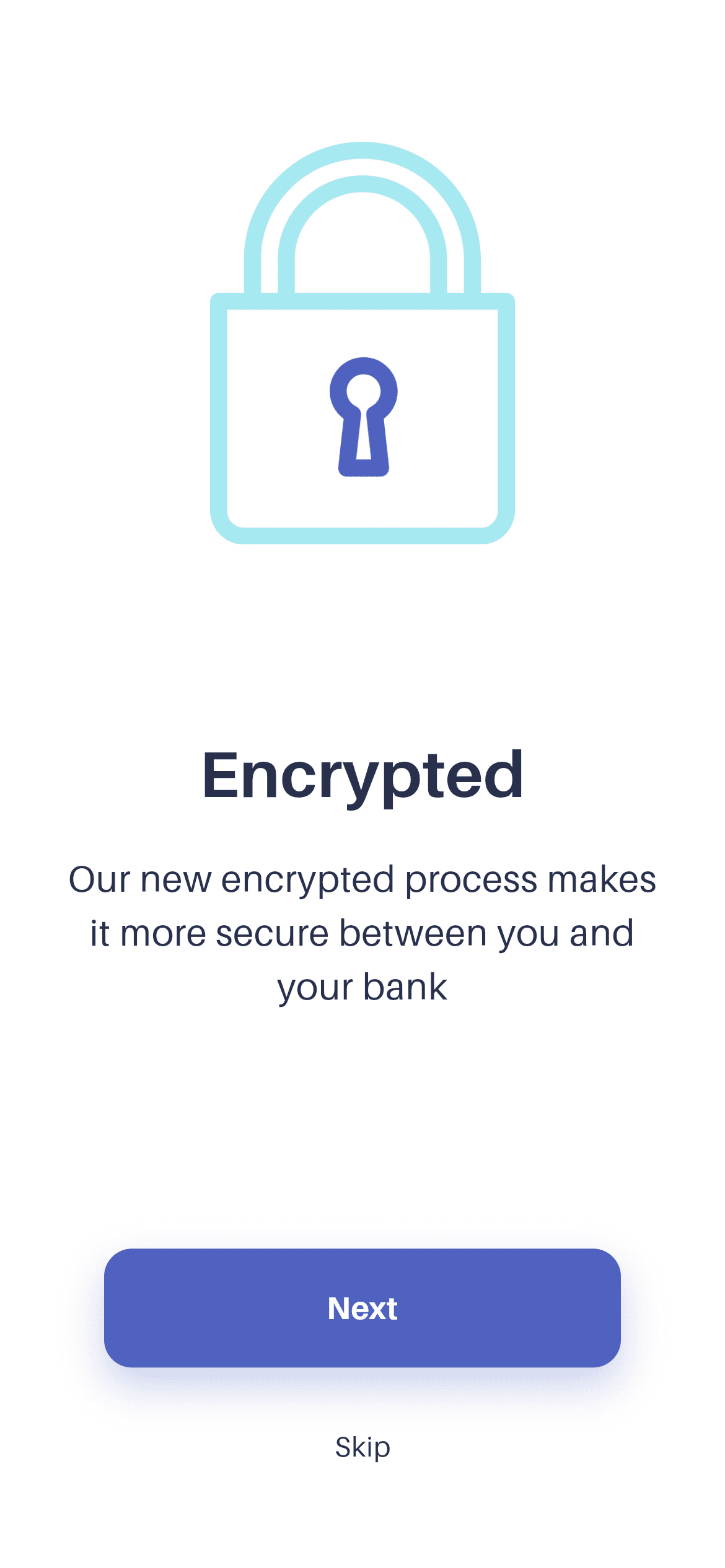
What you'll build
- ✓A trust-building final onboarding slide with a padlock illustration and security copy
- ✓A tall (130:172) illustration sized by ratio so it never distorts on any screen
- ✓The same OnboardingScaffold reused across the whole carousel, so padding can't drift between slides
- ✓An onNext callback positioned to hand off to sign-up rather than another slide
- ✓The bundled Aileron design font wired through pubspec.yaml
Step-by-step build
Create the file
Add a new file at lib/wallet_onboarding_3/wallet_onboarding_3_screen.dart in your Flutter project.
Register the bundled fonts
No external packages — this is pure Flutter. It does bundle its design font (Aileron), so drop the font file into fonts/ and declare it in pubspec.yaml:
flutter:
  fonts:
    - family: Aileron
      fonts:
- asset: fonts/Aileron-Regular.ttfBuild it, piece by piece
Here's how the screen goes together. Each block below is a real slice of the code with a plain-English explanation — paste them in order, or grab the whole file from the next section.
A slide with no layout of its own
import 'package:flutter/material.dart';

import 'widgets/onboarding_scaffold.dart';

/// Onboarding 3 — "Encrypted" — from the Wallet App UI Kit (Finco).
///
/// Self-contained, pure Flutter. Bundles its exact design font (Aileron) and
/// the original kit illustration. Renders standalone when pushed as a route.
class WalletOnboardingThreeScreen extends StatelessWidget {
  const WalletOnboardingThreeScreen({super.key});
The file imports material.dart and the local widgets/onboarding_scaffold.dart — no third-party packages. WalletOnboardingThreeScreen is a StatelessWidget with a const super.key constructor. Keeping the scaffold as a local file inside the screen's folder (rather than a shared package) is what lets the CLI install this one screen without pulling in the rest of the kit; the trade-off is that each slide carries its own copy, which is fine because the copy is identical.
A portrait illustration and its aspect ratio
  @override
  Widget build(BuildContext context) {
    return OnboardingScaffold(
      imageAsset:
          'lib/screens/onboarding/wallet_onboarding_3/images/onboard_three.png',
      imageAspect: 130 / 172,
imageAsset points at onboard_three.png, the padlock artwork. The interesting value is imageAspect: 130 / 172 — unlike the square illustration on slide two, this one is taller than it is wide. The scaffold reads that as width / height: it clamps the image width to 42% of the viewport (between 120 and 220 logical pixels) and then computes height as imgWidth / imageAspect, so a 130:172 ratio produces a taller box automatically. Writing the raw design dimensions as a division instead of a decimal keeps the source of the number obvious.
Security copy and the handoff callbacks
      title: 'Encrypted',
      subtitle:
          'Our new encrypted process makes\nit more secure between you and\nyour bank',
      onNext: () {},
      onSkip: () {},
    );
  }
}
title is the single word 'Encrypted' — rendered by the scaffold at 35px bold Aileron — and subtitle carries the three-line reassurance, with \n forcing the exact breaks from the design so the sentence never wraps awkwardly mid-phrase. onNext and onSkip are empty closures here. On this final slide they usually do the same thing: because there is no slide four, both should route into sign-up or the phone-registration step, typically with Navigator.pushReplacement so the user can't swipe back into onboarding after signing up.
Full code
The complete, ready-to-paste source (2 files). Free to use in your projects — one click copies it all.
import 'package:flutter/material.dart';

import 'widgets/onboarding_scaffold.dart';

/// Onboarding 3 — "Encrypted" — from the Wallet App UI Kit (Finco).
///
/// Self-contained, pure Flutter. Bundles its exact design font (Aileron) and
/// the original kit illustration. Renders standalone when pushed as a route.
class WalletOnboardingThreeScreen extends StatelessWidget {
  const WalletOnboardingThreeScreen({super.key});

  @override
  Widget build(BuildContext context) {
    return OnboardingScaffold(
      imageAsset:
          'lib/screens/onboarding/wallet_onboarding_3/images/onboard_three.png',
      imageAspect: 130 / 172,
      title: 'Encrypted',
      subtitle:
          'Our new encrypted process makes\nit more secure between you and\nyour bank',
      onNext: () {},
      onSkip: () {},
    );
  }
}
Plus bundled 3 binary assets (fonts/images). The CLI and MCP install those for you automatically.
Two faster ways to add it
Copy-paste works, but you can skip it entirely.
1. FlutterKit CLI
One command drops this screen — and its fonts — straight into your project.
$ flutterkit add wallet-onboarding-32. AI agent (MCP)
Connect FlutterKit's MCP server in Claude or Cursor and just ask your agent to install wallet-onboarding-3 — it fetches and writes the files for you.
FAQ
Is this Flutter onboarding screen free to use?
Yes. The full Dart source on this page, including the shared OnboardingScaffold, is free to use in personal and commercial projects. Install it with the FlutterKit CLI (flutterkit add wallet-onboarding-3) or let an AI agent add it for you via MCP.
Can I use a different illustration?
Yes — point imageAsset at your own file and set imageAspect to your artwork's width divided by its height. The scaffold handles the sizing from there, so you never need to touch the layout code to swap art.
Does it need any external packages?
No — pure Flutter on the material library. It bundles the Aileron font and the onboard_three.png illustration, both registered in pubspec.yaml as shown in step 2; the CLI and MCP install those files for you.
Which Flutter version does it target?
Super parameters put the floor at Dart 3 / Flutter 3.10+, and the scaffold's Color.withValues() call needs Flutter 3.22+. On an older SDK, replace withValues(alpha: 0.30) with withOpacity(0.30) and it compiles.

