How to Build a Fintech Budget Setup Screen in Flutter (Full Code + Preview)
Every budgeting feature starts with the same screen: pick a category, choose a limit, decide whether the app should warn you. This tutorial walks through a Revolut-style budget-setup screen in Flutter where all three inputs drive real state — a 48px dollar label that re-renders as the slider moves in $50 steps, a three-column category grid whose selection ring costs no layout shift, and a save button whose text names the category you picked. It is pure Flutter with a forced dark theme, and every line below comes from the actual file.
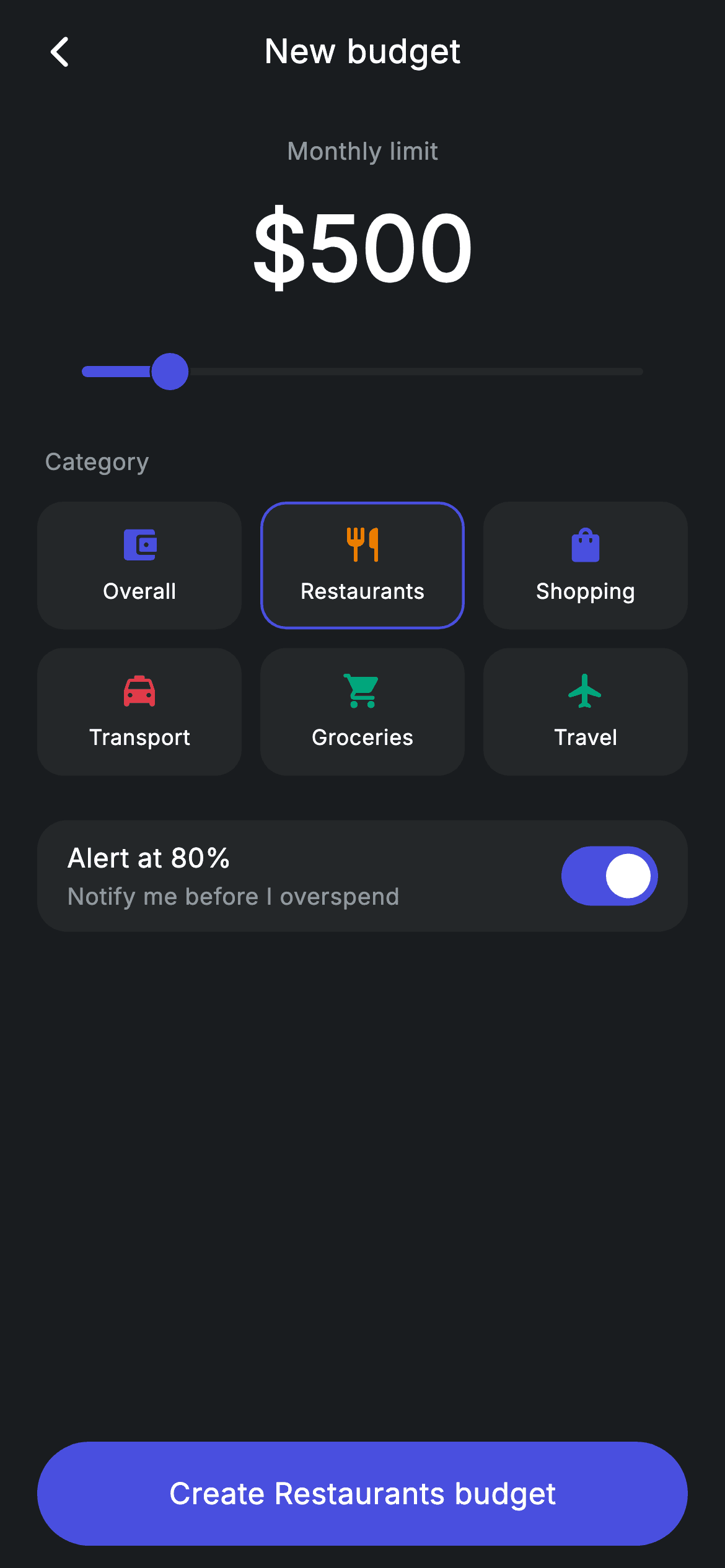
What you'll build
- ✓A discrete amount slider from $50 to $3,000 whose 59 divisions snap to clean $50 increments
- ✓A live 48px monthly-limit label that rounds and re-renders on every slider tick
- ✓A three-column category grid where selection is a 1.5px brand border swapped over a transparent one, so tapping never shifts the layout
- ✓An 'Alert at 80%' overspend toggle built as a surface tile with a brand-tracked Switch
- ✓A pill-shaped save button whose label rewrites itself to 'Create Restaurants budget' (or whichever category is active)
Step-by-step build
Create the file
Add a new file at lib/fintech_budget_setup/fintech_budget_setup_screen.dart in your Flutter project.
Register the bundled fonts
No external packages — this is pure Flutter. It does bundle its design font (Inter), so drop the font file into fonts/ and declare it in pubspec.yaml:
flutter:
  fonts:
    - family: Inter
      fonts:
- asset: fonts/Inter-Regular.ttfBuild it, piece by piece
Here's how the screen goes together. Each block below is a real slice of the code with a plain-English explanation — paste them in order, or grab the whole file from the next section.
Palette, category data and three pieces of state
import 'package:flutter/material.dart';

/// Budget setup — create a monthly budget (Revolut-inspired design system).
///
/// Self-contained per CONVENTIONS.md: pure Flutter only, the exact design font
/// (Inter) is bundled under `fonts/`, no network images, and the screen forces
/// its own dark theme. A category picker, amount slider and alert toggle all
/// drive live state; the large amount label updates with the slider.
class FintechBudgetSetupScreen extends StatefulWidget {
  const FintechBudgetSetupScreen({super.key, this.onBack, this.onSave});

  final VoidCallback? onBack;
  final VoidCallback? onSave;

  @override
  State<FintechBudgetSetupScreen> createState() =>
      _FintechBudgetSetupScreenState();
}

class _FintechBudgetSetupScreenState extends State<FintechBudgetSetupScreen> {
  static const String _font = 'Inter';
  static const Color _bg = Color(0xFF191C1F);
  static const Color _surface = Color(0xFF242729);
  static const Color _brand = Color(0xFF494FDF);
  static const Color _teal = Color(0xFF00A87E);
  static const Color _amber = Color(0xFFEC7E00);
  static const Color _red = Color(0xFFE23B4A);
  static const Color _muted = Color(0xFF8D969E);

  static const List<_Cat> _cats = <_Cat>[
    _Cat('Overall', Icons.account_balance_wallet_rounded, _brand),
    _Cat('Restaurants', Icons.restaurant_rounded, _amber),
    _Cat('Shopping', Icons.shopping_bag_rounded, _brand),
    _Cat('Transport', Icons.local_taxi_rounded, _red),
    _Cat('Groceries', Icons.local_grocery_store_rounded, _teal),
    _Cat('Travel', Icons.flight_rounded, _teal),
  ];

  int _cat = 1;
  double _amount = 500;
  bool _alert = true;
The screen is a `StatefulWidget` taking two optional callbacks, `onBack` and `onSave`, so the host app owns navigation and persistence. The state class opens with the whole design system as `static const` colours: `_bg` #191C1F, `_surface` #242729, brand indigo `_brand` #494FDF, plus `_teal` #00A87E, `_amber` #EC7E00 and `_red` #E23B4A for category tints, with `_muted` #8D969E for secondary text. The six categories live in a `static const List<_Cat>` where each entry bundles a name, a rounded Material icon and its own tint — Restaurants is amber, Transport is red, Groceries and Travel are teal — so the grid later just reads `_cats[i]` instead of switching on strings. Only three fields ever mutate: `_cat = 1` (Restaurants preselected, a spending category being a likelier budget than 'Overall'), `_amount = 500`, and `_alert = true` so the safety net is opt-out rather than opt-in.
A forced dark theme and the slider that drives everything
  @override
  Widget build(BuildContext context) {
    return Theme(
      data: ThemeData.dark(useMaterial3: true),
      child: Scaffold(
        backgroundColor: _bg,
        body: SafeArea(
          child: Column(
            children: <Widget>[
              _buildAppBar(),
              Expanded(
                child: ListView(
                  physics: const BouncingScrollPhysics(),
                  padding: const EdgeInsets.fromLTRB(20, 8, 20, 24),
                  children: <Widget>[
                    _buildAmount(),
                    const SizedBox(height: 8),
                    SliderTheme(
                      data: SliderTheme.of(context).copyWith(
                        activeTrackColor: _brand,
                        inactiveTrackColor: _surface,
                        thumbColor: _brand,
                        overlayColor: _brand.withValues(alpha: 0.18),
                        trackHeight: 4,
                      ),
                      child: Slider(
                        value: _amount,
                        min: 50,
                        max: 3000,
                        divisions: 59,
                        onChanged: (double v) => setState(() => _amount = v),
                      ),
                    ),
                    const SizedBox(height: 16),
                    _label('Category'),
                    _buildCatGrid(),
                    const SizedBox(height: 24),
                    _buildAlertTile(),
                  ],
                ),
              ),
              _buildSave(),
            ],
          ),
        ),
      ),
    );
  }
`build` wraps the `Scaffold` in `Theme(data: ThemeData.dark(useMaterial3: true))`, so the screen renders dark even inside a light host app — the vendored design depends on it. The layout is a `Column` of three bands: app bar, an `Expanded` `ListView` with `BouncingScrollPhysics`, and the save button pinned below the scroll area so it never disappears off-screen. The interesting numbers are on the `Slider`: `min: 50`, `max: 3000`, `divisions: 59` — (3000 − 50) / 50 = 59, so every detent lands on an exact $50 boundary and the big label never shows an awkward $847. `SliderTheme.copyWith` paints the active track and thumb in `_brand`, reuses `_surface` as the inactive track so the rail reads as part of the background system, and sets the press overlay to `_brand.withValues(alpha: 0.18)` on a 4px track. `onChanged` is one line: `setState(() => _amount = v)`.
Balancing a centred title without an AppBar
  Widget _buildAppBar() {
    return Padding(
      padding: const EdgeInsets.fromLTRB(8, 4, 8, 4),
      child: Row(
        children: <Widget>[
          IconButton(
            onPressed: widget.onBack,
            icon: const Icon(Icons.arrow_back_ios_new_rounded,
                size: 20, color: Colors.white),
          ),
          const Expanded(
            child: Text(
              'New budget',
              textAlign: TextAlign.center,
              style: TextStyle(
                fontFamily: _font,
                fontSize: 18,
                fontWeight: FontWeight.w500,
                letterSpacing: 0.24,
                color: Colors.white,
              ),
            ),
          ),
          const SizedBox(width: 48),
        ],
      ),
    );
  }
The header is a hand-rolled `Row` rather than a Material `AppBar`: a back `IconButton` with `arrow_back_ios_new_rounded` at 20px, then 'New budget' centred inside an `Expanded`. The trailing `const SizedBox(width: 48)` is the piece that matters — a standard `IconButton` occupies 48 logical pixels, so mirroring that width on the right keeps `textAlign: TextAlign.center` genuinely centred instead of drifting toward the empty side. The title is 18px `w500` with the file's signature `letterSpacing: 0.24`, which every text style in this screen repeats for a consistent slightly-open Inter look.
The live amount readout
  Widget _buildAmount() {
    return Column(
      children: <Widget>[
        const SizedBox(height: 8),
        const Text(
          'Monthly limit',
          style: TextStyle(
            fontFamily: _font,
            fontSize: 13,
            letterSpacing: 0.24,
            color: _muted,
          ),
        ),
        const SizedBox(height: 8),
        Text(
          '\$${_amount.round()}',
          style: const TextStyle(
            fontFamily: _font,
            fontSize: 48,
            fontWeight: FontWeight.w600,
            letterSpacing: 0.24,
            color: Colors.white,
          ),
        ),
      ],
    );
  }
`_buildAmount` is a two-line `Column`: a 13px `_muted` 'Monthly limit' caption, then the number itself — `'\$${_amount.round()}'` at 48px `w600` white. Because `_amount` is a `double`, `.round()` strips the decimal before display, and since the slider only stops on $50 detents the rounded value is always the true value. This label is the payoff of keeping `_amount` in state: dragging the slider calls `setState`, the whole subtree rebuilds, and the giant number tracks the thumb frame by frame without any listener or controller plumbing.
A category grid where selection costs nothing
  Widget _buildCatGrid() {
    return GridView.count(
      crossAxisCount: 3,
      shrinkWrap: true,
      physics: const NeverScrollableScrollPhysics(),
      mainAxisSpacing: 10,
      crossAxisSpacing: 10,
      childAspectRatio: 1.6,
      children: <Widget>[
        for (int i = 0; i < _cats.length; i++)
          GestureDetector(
            onTap: () => setState(() => _cat = i),
            child: Container(
              decoration: BoxDecoration(
                color: _surface,
                borderRadius: BorderRadius.circular(14),
                border: Border.all(
                  color: _cat == i ? _brand : Colors.transparent,
                  width: 1.5,
                ),
              ),
              child: Column(
                mainAxisAlignment: MainAxisAlignment.center,
                children: <Widget>[
                  Icon(_cats[i].icon, size: 22, color: _cats[i].tint),
                  const SizedBox(height: 6),
                  Text(
                    _cats[i].name,
                    style: const TextStyle(
                      fontFamily: _font,
                      fontSize: 11.5,
                      fontWeight: FontWeight.w500,
                      letterSpacing: 0.24,
                      color: Colors.white,
                    ),
                  ),
                ],
              ),
            ),
          ),
      ],
    );
  }
`GridView.count` lays the six categories in three columns with `shrinkWrap: true` and `NeverScrollableScrollPhysics`, because the grid lives inside the outer `ListView` and must size itself rather than fight for scroll gestures. `childAspectRatio: 1.6` makes each cell a wide, short card that fits an icon over an 11.5px label. Each cell is a `GestureDetector` writing `_cat = i` on tap, and the selected state is expressed purely as `Border.all(color: _cat == i ? _brand : Colors.transparent, width: 1.5)` — the unselected cells carry an invisible border of the same width, so switching selection recolours a ring instead of adding one, and nothing in the grid ever reflows. Icons take their tint from the data (`_cats[i].tint`), which is why Restaurants glows amber while Groceries is teal, on the shared `_surface` card with a 14px corner radius.
The overspend-alert tile
  Widget _buildAlertTile() {
    return Container(
      padding: const EdgeInsets.fromLTRB(16, 6, 12, 6),
      decoration: BoxDecoration(
        color: _surface,
        borderRadius: BorderRadius.circular(16),
      ),
      child: Row(
        children: <Widget>[
          const Expanded(
            child: Column(
              crossAxisAlignment: CrossAxisAlignment.start,
              children: <Widget>[
                Text(
                  'Alert at 80%',
                  style: TextStyle(
                    fontFamily: _font,
                    fontSize: 14.5,
                    fontWeight: FontWeight.w500,
                    letterSpacing: 0.24,
                    color: Colors.white,
                  ),
                ),
                SizedBox(height: 2),
                Text(
                  'Notify me before I overspend',
                  style: TextStyle(
                    fontFamily: _font,
                    fontSize: 12.5,
                    letterSpacing: 0.24,
                    color: _muted,
                  ),
                ),
              ],
            ),
          ),
          Switch(
            value: _alert,
            onChanged: (bool v) => setState(() => _alert = v),
            activeThumbColor: Colors.white,
            activeTrackColor: _brand,
          ),
        ],
      ),
    );
  }
The alert row is a `_surface` container with a 16px radius and deliberately asymmetric padding — `fromLTRB(16, 6, 12, 6)` — because the Material `Switch` on the right ships its own generous touch target; trimming the right inset to 12 keeps the switch looking optically flush with the card edge. The left side stacks 'Alert at 80%' at 14.5px `w500` over a 12.5px `_muted` line, 'Notify me before I overspend', which sells the toggle as a benefit instead of a setting. The `Switch` binds to `_alert` with a white `activeThumbColor` on a `_brand` track, so the on-state matches the slider and the save button rather than defaulting to Material's teal-green.
One shared section label
  Widget _label(String text) {
    return Padding(
      padding: const EdgeInsets.only(left: 4, bottom: 12),
      child: Text(
        text,
        style: const TextStyle(
          fontFamily: _font,
          fontSize: 12.5,
          fontWeight: FontWeight.w500,
          letterSpacing: 0.24,
          color: _muted,
        ),
      ),
    );
  }
`_label` is a tiny helper producing the 12.5px `_muted` 'Category' heading with `EdgeInsets.only(left: 4, bottom: 12)`. The 4px left inset is optical alignment: the grid cards below have visible edges while the label's text box does not, so nudging the text right makes the two appear flush. Keeping it a method means any future section — a period picker, say — gets an identical heading for free.
A save button that names its category
  Widget _buildSave() {
    return Padding(
      padding: const EdgeInsets.fromLTRB(20, 0, 20, 12),
      child: SizedBox(
        width: double.infinity,
        height: 56,
        child: Material(
          color: _brand,
          borderRadius: BorderRadius.circular(9999),
          child: InkWell(
            borderRadius: BorderRadius.circular(9999),
            onTap: widget.onSave,
            child: Center(
              child: Text(
                'Create ${_cats[_cat].name} budget',
                style: const TextStyle(
                  fontFamily: _font,
                  fontSize: 16,
                  fontWeight: FontWeight.w500,
                  letterSpacing: 0.24,
                  color: Colors.white,
                ),
              ),
            ),
          ),
        ),
      ),
    );
  }
}

class _Cat {
  const _Cat(this.name, this.icon, this.tint);
  final String name;
  final IconData icon;
  final Color tint;
}
`_buildSave` skips `FilledButton` in favour of `Material` + `InkWell`, both with a `BorderRadius.circular(9999)` — an effectively infinite radius that turns a full-width 56px `SizedBox` into a perfect pill while keeping the ink ripple clipped to it. Doing it manually avoids fighting `ButtonStyle` for an exact height and radius. The label is the screen's best trick: `'Create ${_cats[_cat].name} budget'` interpolates the selected category, so tapping Travel instantly relabels the button 'Create Travel budget' — confirmation of the choice at the moment of commitment, with no extra state. `onTap` forwards to `widget.onSave`. The file closes with `_Cat`, a three-field const value class (name, icon, tint) that lets the category list at the top stay a compile-time constant.
Full code
The complete, ready-to-paste source. Free to use in your projects — one click copies it all.
import 'package:flutter/material.dart';

/// Budget setup — create a monthly budget (Revolut-inspired design system).
///
/// Self-contained per CONVENTIONS.md: pure Flutter only, the exact design font
/// (Inter) is bundled under `fonts/`, no network images, and the screen forces
/// its own dark theme. A category picker, amount slider and alert toggle all
/// drive live state; the large amount label updates with the slider.
class FintechBudgetSetupScreen extends StatefulWidget {
  const FintechBudgetSetupScreen({super.key, this.onBack, this.onSave});

  final VoidCallback? onBack;
  final VoidCallback? onSave;

  @override
  State<FintechBudgetSetupScreen> createState() =>
      _FintechBudgetSetupScreenState();
}

class _FintechBudgetSetupScreenState extends State<FintechBudgetSetupScreen> {
  static const String _font = 'Inter';
  static const Color _bg = Color(0xFF191C1F);
  static const Color _surface = Color(0xFF242729);
  static const Color _brand = Color(0xFF494FDF);
  static const Color _teal = Color(0xFF00A87E);
  static const Color _amber = Color(0xFFEC7E00);
  static const Color _red = Color(0xFFE23B4A);
  static const Color _muted = Color(0xFF8D969E);

  static const List<_Cat> _cats = <_Cat>[
    _Cat('Overall', Icons.account_balance_wallet_rounded, _brand),
    _Cat('Restaurants', Icons.restaurant_rounded, _amber),
    _Cat('Shopping', Icons.shopping_bag_rounded, _brand),
    _Cat('Transport', Icons.local_taxi_rounded, _red),
    _Cat('Groceries', Icons.local_grocery_store_rounded, _teal),
    _Cat('Travel', Icons.flight_rounded, _teal),
  ];

  int _cat = 1;
  double _amount = 500;
  bool _alert = true;

  @override
  Widget build(BuildContext context) {
    return Theme(
      data: ThemeData.dark(useMaterial3: true),
      child: Scaffold(
        backgroundColor: _bg,
        body: SafeArea(
          child: Column(
            children: <Widget>[
              _buildAppBar(),
              Expanded(
                child: ListView(
                  physics: const BouncingScrollPhysics(),
                  padding: const EdgeInsets.fromLTRB(20, 8, 20, 24),
                  children: <Widget>[
                    _buildAmount(),
                    const SizedBox(height: 8),
                    SliderTheme(
                      data: SliderTheme.of(context).copyWith(
                        activeTrackColor: _brand,
                        inactiveTrackColor: _surface,
                        thumbColor: _brand,
                        overlayColor: _brand.withValues(alpha: 0.18),
                        trackHeight: 4,
                      ),
                      child: Slider(
                        value: _amount,
                        min: 50,
                        max: 3000,
                        divisions: 59,
                        onChanged: (double v) => setState(() => _amount = v),
                      ),
                    ),
                    const SizedBox(height: 16),
                    _label('Category'),
                    _buildCatGrid(),
                    const SizedBox(height: 24),
                    _buildAlertTile(),
                  ],
                ),
              ),
              _buildSave(),
            ],
          ),
        ),
      ),
    );
  }

  Widget _buildAppBar() {
    return Padding(
      padding: const EdgeInsets.fromLTRB(8, 4, 8, 4),
      child: Row(
        children: <Widget>[
          IconButton(
            onPressed: widget.onBack,
            icon: const Icon(Icons.arrow_back_ios_new_rounded,
                size: 20, color: Colors.white),
          ),
          const Expanded(
            child: Text(
              'New budget',
              textAlign: TextAlign.center,
              style: TextStyle(
                fontFamily: _font,
                fontSize: 18,
                fontWeight: FontWeight.w500,
                letterSpacing: 0.24,
                color: Colors.white,
              ),
            ),
          ),
          const SizedBox(width: 48),
        ],
      ),
    );
  }

  Widget _buildAmount() {
    return Column(
      children: <Widget>[
        const SizedBox(height: 8),
        const Text(
          'Monthly limit',
          style: TextStyle(
            fontFamily: _font,
            fontSize: 13,
            letterSpacing: 0.24,
            color: _muted,
          ),
        ),
        const SizedBox(height: 8),
        Text(
          '\$${_amount.round()}',
          style: const TextStyle(
            fontFamily: _font,
            fontSize: 48,
            fontWeight: FontWeight.w600,
            letterSpacing: 0.24,
            color: Colors.white,
          ),
        ),
      ],
    );
  }

  Widget _buildCatGrid() {
    return GridView.count(
      crossAxisCount: 3,
      shrinkWrap: true,
      physics: const NeverScrollableScrollPhysics(),
      mainAxisSpacing: 10,
      crossAxisSpacing: 10,
      childAspectRatio: 1.6,
      children: <Widget>[
        for (int i = 0; i < _cats.length; i++)
          GestureDetector(
            onTap: () => setState(() => _cat = i),
            child: Container(
              decoration: BoxDecoration(
                color: _surface,
                borderRadius: BorderRadius.circular(14),
                border: Border.all(
                  color: _cat == i ? _brand : Colors.transparent,
                  width: 1.5,
                ),
              ),
              child: Column(
                mainAxisAlignment: MainAxisAlignment.center,
                children: <Widget>[
                  Icon(_cats[i].icon, size: 22, color: _cats[i].tint),
                  const SizedBox(height: 6),
                  Text(
                    _cats[i].name,
                    style: const TextStyle(
                      fontFamily: _font,
                      fontSize: 11.5,
                      fontWeight: FontWeight.w500,
                      letterSpacing: 0.24,
                      color: Colors.white,
                    ),
                  ),
                ],
              ),
            ),
          ),
      ],
    );
  }

  Widget _buildAlertTile() {
    return Container(
      padding: const EdgeInsets.fromLTRB(16, 6, 12, 6),
      decoration: BoxDecoration(
        color: _surface,
        borderRadius: BorderRadius.circular(16),
      ),
      child: Row(
        children: <Widget>[
          const Expanded(
            child: Column(
              crossAxisAlignment: CrossAxisAlignment.start,
              children: <Widget>[
                Text(
                  'Alert at 80%',
                  style: TextStyle(
                    fontFamily: _font,
                    fontSize: 14.5,
                    fontWeight: FontWeight.w500,
                    letterSpacing: 0.24,
                    color: Colors.white,
                  ),
                ),
                SizedBox(height: 2),
                Text(
                  'Notify me before I overspend',
                  style: TextStyle(
                    fontFamily: _font,
                    fontSize: 12.5,
                    letterSpacing: 0.24,
                    color: _muted,
                  ),
                ),
              ],
            ),
          ),
          Switch(
            value: _alert,
            onChanged: (bool v) => setState(() => _alert = v),
            activeThumbColor: Colors.white,
            activeTrackColor: _brand,
          ),
        ],
      ),
    );
  }

  Widget _label(String text) {
    return Padding(
      padding: const EdgeInsets.only(left: 4, bottom: 12),
      child: Text(
        text,
        style: const TextStyle(
          fontFamily: _font,
          fontSize: 12.5,
          fontWeight: FontWeight.w500,
          letterSpacing: 0.24,
          color: _muted,
        ),
      ),
    );
  }

  Widget _buildSave() {
    return Padding(
      padding: const EdgeInsets.fromLTRB(20, 0, 20, 12),
      child: SizedBox(
        width: double.infinity,
        height: 56,
        child: Material(
          color: _brand,
          borderRadius: BorderRadius.circular(9999),
          child: InkWell(
            borderRadius: BorderRadius.circular(9999),
            onTap: widget.onSave,
            child: Center(
              child: Text(
                'Create ${_cats[_cat].name} budget',
                style: const TextStyle(
                  fontFamily: _font,
                  fontSize: 16,
                  fontWeight: FontWeight.w500,
                  letterSpacing: 0.24,
                  color: Colors.white,
                ),
              ),
            ),
          ),
        ),
      ),
    );
  }
}

class _Cat {
  const _Cat(this.name, this.icon, this.tint);
  final String name;
  final IconData icon;
  final Color tint;
}
Plus bundled 1 binary asset (fonts/images). The CLI and MCP install those for you automatically.
Two faster ways to add it
Copy-paste works, but you can skip it entirely.
1. FlutterKit CLI
One command drops this screen — and its fonts — straight into your project.
$ flutterkit add fintech-budget-setup2. AI agent (MCP)
Connect FlutterKit's MCP server in Claude or Cursor and just ask your agent to install fintech-budget-setup — it fetches and writes the files for you.
FAQ
Is this budget setup screen free for commercial projects?
Yes. FlutterKit screens are free, commercial use included — no licence key, no attribution line, no upgrade tier. Copy the code from this page or install it via the CLI and ship it in a production fintech app as-is.
Does it depend on any packages or fonts?
No third-party packages — the file imports only `package:flutter/material.dart`, and the category icons are built-in Material icons. The typeface is Inter, bundled with the screen under `fonts/` and referenced everywhere through the `_font` constant, so the layout looks identical on iOS and Android.
Which Flutter version do I need?
Flutter 3.22 or newer: the slider overlay uses `_brand.withValues(alpha: 0.18)`, which older SDKs lack. On an older stable, swap it for `withOpacity(0.18)`; the `Switch`'s `activeThumbColor` is also recent, so replace it with `activeColor` if your SDK does not know it. The constructor already uses `super.key`, standard since Dart 2.17.
Why does the slider use divisions: 59?
It is derived, not arbitrary: the range runs from $50 to $3,000, a span of $2,950, and 2,950 ÷ 50 = 59. Each detent is therefore exactly $50, which is why the 48px label can call `.round()` and always show a clean figure. To change the step, keep the formula — divisions = (max − min) / step.
How do I actually save the budget the user configured?
The screen deliberately stops at UI state: `_cats[_cat].name`, `_amount` and `_alert` hold everything the user chose, and the pill button fires `widget.onSave`. In your app, either read those values by lifting them into the callback's signature (change `onSave` to accept a budget object) or hoist the three fields into a controller and write them to your store — local database, Firestore, or your API — when the callback fires.


