How to Build a City Browser Screen in Flutter (Full Code + Preview)
City browsers live and die on their imagery, so this tutorial builds a travel screen that puts photos first. You'll assemble a Flutter Scaffold that stacks a tan search bar over a horizontally scrolling carousel of photo-backed city cards and anchors it with a bottom tab bar. The screen carries a hard-coded list of five cities — New York, Paris, London, Tokyo, and Dubai — each with an Unsplash image and a short blurb, tracks the selected bottom tab in state, and dismisses the keyboard on any outside tap. It's pure Flutter with one bundled font.
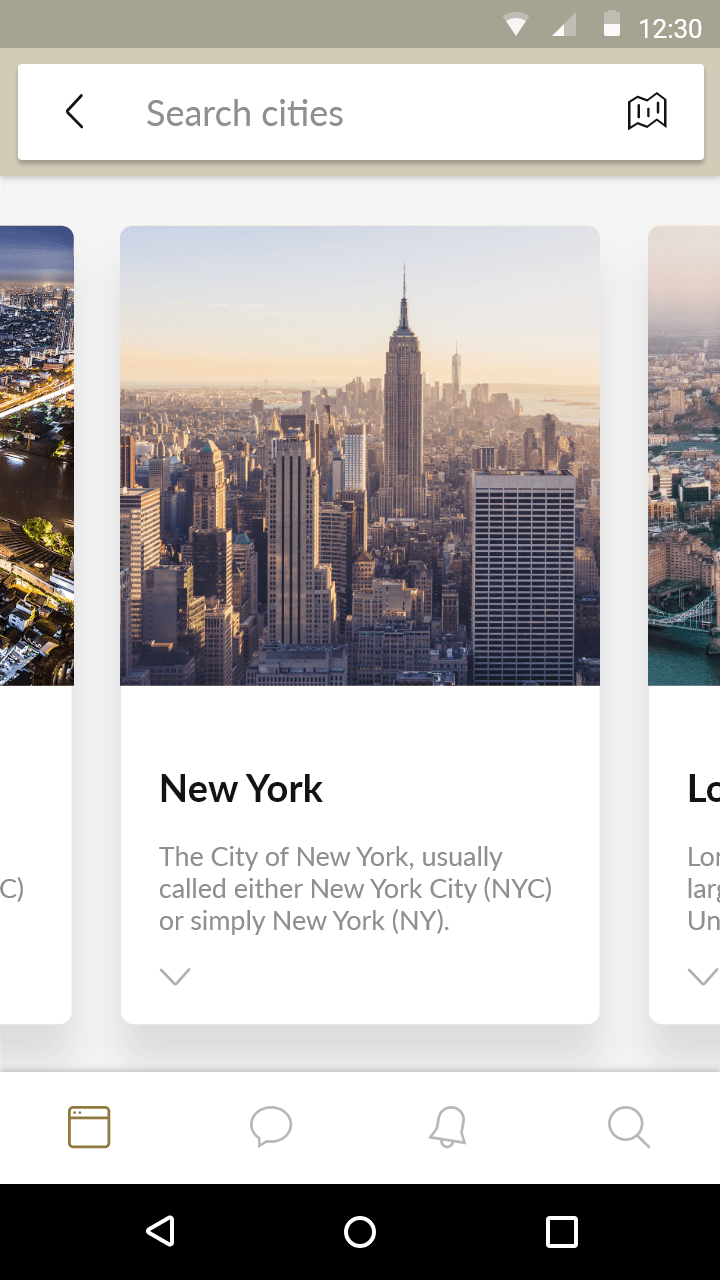
What you'll build
- ✓A Scaffold that stacks a tan search bar, a horizontal photo carousel, and a bottom navigation bar
- ✓An immutable City data model plus a const list of five real cities with Unsplash image URLs
- ✓Tap-anywhere-to-dismiss keyboard behavior using GestureDetector and FocusScope
- ✓A bottom tab bar whose selected index is held in state and updated with setState
- ✓A single design-token background color (#F5F5F5) and the bundled Lato font
Step-by-step build
Create the file
Add a new file at lib/cities/cities_screen.dart in your Flutter project.
Register the bundled fonts
No external packages — this is pure Flutter. It does bundle its design font (Lato), so drop the font file into fonts/ and declare it in pubspec.yaml:
flutter:
  fonts:
    - family: Lato
      fonts:
- asset: fonts/Lato-Regular.ttfBuild it, piece by piece
Here's how the screen goes together. Each block below is a real slice of the code with a plain-English explanation — paste them in order, or grab the whole file from the next section.
Imports, the doc comment, and the stateful screen
import 'package:flutter/material.dart';

import 'widgets/cities_search_bar.dart';
import 'widgets/cities_tab_bar.dart';
import 'widgets/city_gallery.dart';

/// "Cities" — an expandable photo-gallery browse screen (from the bankee-ui-kit
/// Zeplin source). A tan search app bar sits above an accordion of city cards;
/// tapping a collapsed card expands it. A white bottom tab bar anchors the
/// screen.
///
/// Self-contained, pure Flutter. Bundles its exact design font (Lato) and uses
/// network city photos. Renders standalone when pushed as a route.
class CitiesScreen extends StatefulWidget {
  const CitiesScreen({super.key});

  @override
  State<CitiesScreen> createState() => _CitiesScreenState();
}
The file imports Flutter's material library and three local widget files — cities_search_bar.dart, cities_tab_bar.dart, and city_gallery.dart — so each piece of the UI lives in its own small file and this one stays a clean assembler. The doc comment records the design's origin (a tan search app bar over city cards with a white bottom tab bar). CitiesScreen is declared a StatefulWidget with a const constructor and super.key; it's stateful because the selected bottom-tab index changes over time, and createState() returns the private _CitiesScreenState that holds that data.
State fields and the image query token
class _CitiesScreenState extends State<CitiesScreen> {
  static const Color _background = Color(0xFFF5F5F5);

  int _navIndex = 0;

  // Network city photos (Unsplash) with sizing params baked in. The design's
  // first two cards both read "New York"; we keep the New York/London copy from
  // the source and round the list out with more cities so the carousel feels
  // like a real product.
  static const String _imgParams = '?w=600&q=80&auto=format&fit=crop';
Inside the state, _background is a const Color(0xFFF5F5F5) design token — the near-white canvas the whole screen sits on. _navIndex is an int starting at 0 that remembers which of the four bottom tabs is selected. _imgParams is a const query string, '?w=600&q=80&auto=format&fit=crop', that gets appended to every Unsplash photo URL so each image is fetched at 600px wide, quality 80, auto-formatted and crop-fitted — a small trick that keeps the downloads light instead of pulling full-resolution photos.
The city data — a const list of five cities
  static const List<City> _cities = <City>[
    City(
      name: 'New York',
      description:
          'The City of New York, usually called either New York City (NYC) '
          'or simply New York (NY).',
      imageUrl: 'https://images.unsplash.com/photo-1496442226666-8d4d0e62e6e9'
          '$_imgParams',
    ),
    City(
      name: 'Paris',
      description:
          'Paris is the capital and most populous city of France, famed for '
          'its art, fashion, gastronomy and the Eiffel Tower.',
      imageUrl: 'https://images.unsplash.com/photo-1502602898657-3e91760cbb34'
          '$_imgParams',
    ),
    City(
      name: 'London',
      description:
          'London is the capital of and largest city in England and the '
          'United Kingdom, with the largest metropolitan area.',
      imageUrl: 'https://images.unsplash.com/photo-1513635269975-59663e0ac1ad'
          '$_imgParams',
    ),
    City(
      name: 'Tokyo',
      description:
          'Tokyo is the capital of Japan and one of the world’s most '
          'populous metropolises, blending tradition and technology.',
      imageUrl: 'https://images.unsplash.com/photo-1540959733332-eab4deabeeaf'
          '$_imgParams',
    ),
    City(
      name: 'Dubai',
      description:
          'Dubai is a city in the United Arab Emirates known for luxury '
          'shopping, futuristic architecture and a lively nightlife.',
      imageUrl: 'https://images.unsplash.com/photo-1512453979798-5ea266f8880c'
          '$_imgParams',
    ),
  ];
_cities is a static const List<City> — each City(name, description, imageUrl) pairs a title, a one- or two-sentence blurb, and an Unsplash URL whose base photo id is concatenated with $_imgParams. The list holds New York, Paris, London, Tokyo, and Dubai. Because the whole list is const, Flutter builds it once at compile time rather than rebuilding it on every frame. The City class itself is defined in city_gallery.dart, which is why it's usable here without a separate import line.
build(): scaffold, keyboard dismissal, and the body
  @override
  Widget build(BuildContext context) {
    return Scaffold(
      backgroundColor: _background,
      body: SafeArea(
        bottom: false,
        child: GestureDetector(
          onTap: () => FocusScope.of(context).unfocus(),
          child: Column(
            children: <Widget>[
              CitiesSearchBar(
                onBack: () => Navigator.of(context).maybePop(),
              ),
              Padding(
                padding: const EdgeInsets.fromLTRB(0, 24, 0, 24),
                child: CityGallery(cities: _cities),
              ),
            ],
          ),
        ),
      ),
build() returns a Scaffold painted with the _background token. SafeArea(bottom: false) pushes content clear of the status bar but deliberately leaves the bottom inset for the tab bar to handle. The GestureDetector's onTap calls FocusScope.of(context).unfocus() — the standard idiom for closing the search keyboard when you tap any empty area. Its child Column stacks two things: the CitiesSearchBar (whose onBack fires Navigator.of(context).maybePop() to leave the screen) and a Padding with 24px above and below wrapping the CityGallery, which receives the _cities list.
The bottom navigation bar wired to setState
      bottomNavigationBar: CitiesTabBar(
        currentIndex: _navIndex,
        onChanged: (int index) => setState(() => _navIndex = index),
      ),
    );
  }
}
The Scaffold's bottomNavigationBar is a CitiesTabBar handed currentIndex: _navIndex so it knows which icon to highlight, and an onChanged callback that runs setState(() => _navIndex = index). That setState call is the reason the screen is stateful: tapping a different tab stores the new index and triggers a rebuild, so the tab bar re-renders with the newly selected icon tinted. This is the minimal state-management pattern for a persistent bottom nav — one int plus a setState.
Full code
The complete, ready-to-paste source (4 files). Free to use in your projects — one click copies it all.
import 'package:flutter/material.dart';

import 'widgets/cities_search_bar.dart';
import 'widgets/cities_tab_bar.dart';
import 'widgets/city_gallery.dart';

/// "Cities" — an expandable photo-gallery browse screen (from the bankee-ui-kit
/// Zeplin source). A tan search app bar sits above an accordion of city cards;
/// tapping a collapsed card expands it. A white bottom tab bar anchors the
/// screen.
///
/// Self-contained, pure Flutter. Bundles its exact design font (Lato) and uses
/// network city photos. Renders standalone when pushed as a route.
class CitiesScreen extends StatefulWidget {
  const CitiesScreen({super.key});

  @override
  State<CitiesScreen> createState() => _CitiesScreenState();
}

class _CitiesScreenState extends State<CitiesScreen> {
  static const Color _background = Color(0xFFF5F5F5);

  int _navIndex = 0;

  // Network city photos (Unsplash) with sizing params baked in. The design's
  // first two cards both read "New York"; we keep the New York/London copy from
  // the source and round the list out with more cities so the carousel feels
  // like a real product.
  static const String _imgParams = '?w=600&q=80&auto=format&fit=crop';

  static const List<City> _cities = <City>[
    City(
      name: 'New York',
      description:
          'The City of New York, usually called either New York City (NYC) '
          'or simply New York (NY).',
      imageUrl: 'https://images.unsplash.com/photo-1496442226666-8d4d0e62e6e9'
          '$_imgParams',
    ),
    City(
      name: 'Paris',
      description:
          'Paris is the capital and most populous city of France, famed for '
          'its art, fashion, gastronomy and the Eiffel Tower.',
      imageUrl: 'https://images.unsplash.com/photo-1502602898657-3e91760cbb34'
          '$_imgParams',
    ),
    City(
      name: 'London',
      description:
          'London is the capital of and largest city in England and the '
          'United Kingdom, with the largest metropolitan area.',
      imageUrl: 'https://images.unsplash.com/photo-1513635269975-59663e0ac1ad'
          '$_imgParams',
    ),
    City(
      name: 'Tokyo',
      description:
          'Tokyo is the capital of Japan and one of the world’s most '
          'populous metropolises, blending tradition and technology.',
      imageUrl: 'https://images.unsplash.com/photo-1540959733332-eab4deabeeaf'
          '$_imgParams',
    ),
    City(
      name: 'Dubai',
      description:
          'Dubai is a city in the United Arab Emirates known for luxury '
          'shopping, futuristic architecture and a lively nightlife.',
      imageUrl: 'https://images.unsplash.com/photo-1512453979798-5ea266f8880c'
          '$_imgParams',
    ),
  ];

  @override
  Widget build(BuildContext context) {
    return Scaffold(
      backgroundColor: _background,
      body: SafeArea(
        bottom: false,
        child: GestureDetector(
          onTap: () => FocusScope.of(context).unfocus(),
          child: Column(
            children: <Widget>[
              CitiesSearchBar(
                onBack: () => Navigator.of(context).maybePop(),
              ),
              Padding(
                padding: const EdgeInsets.fromLTRB(0, 24, 0, 24),
                child: CityGallery(cities: _cities),
              ),
            ],
          ),
        ),
      ),
      bottomNavigationBar: CitiesTabBar(
        currentIndex: _navIndex,
        onChanged: (int index) => setState(() => _navIndex = index),
      ),
    );
  }
}
Plus bundled 2 binary assets (fonts/images). The CLI and MCP install those for you automatically.
Two faster ways to add it
Copy-paste works, but you can skip it entirely.
1. FlutterKit CLI
One command drops this screen — and its fonts — straight into your project.
$ flutterkit add cities2. AI agent (MCP)
Connect FlutterKit's MCP server in Claude or Cursor and just ask your agent to install cities — it fetches and writes the files for you.
FAQ
Is this Flutter city browser screen free to use?
Yes. The full Dart source on this page is free to copy into your own apps, personal or commercial. Paste it directly, install it with the FlutterKit CLI (flutterkit add cities), or have an AI agent add it for you via MCP.
Does it need any external packages?
No — it's pure Flutter, built entirely on the material library, and the city photos load with Flutter's built-in Image.network (so you need internet access, but no image package). The one extra asset is the bundled Lato font (Lato-Regular and Lato-Bold), which you register in pubspec.yaml as shown in step 2; the CLI and MCP install those font files for you.
Which Flutter version does it target?
Modern Flutter 3.x (Dart 3). The only modern syntax it relies on is super parameters (super.key), which need Dart 2.17+. It doesn't use Color.withValues(), since its colors are written as plain ARGB hex like Color(0xFFF5F5F5), so there's no withOpacity swap to make on an older SDK.

