How to Build a Fintech Request Money Screen in Flutter (Full Code + Preview)
Typing an amount is the one interaction a payments app cannot fumble: there is no cursor, no system keyboard, and no room for '12.345' or a stray leading zero. This tutorial builds a Revolut-inspired request-money screen in Flutter where a hand-built circular numpad edits a plain amount string, capping decimals at two places, swallowing the leading zero, and shrinking the 56px dollar figure with FittedBox so nine characters never overflow. You also get an 'Add a note' chip and a pill-shaped 'Create request link' button that stays grey until the amount is real.
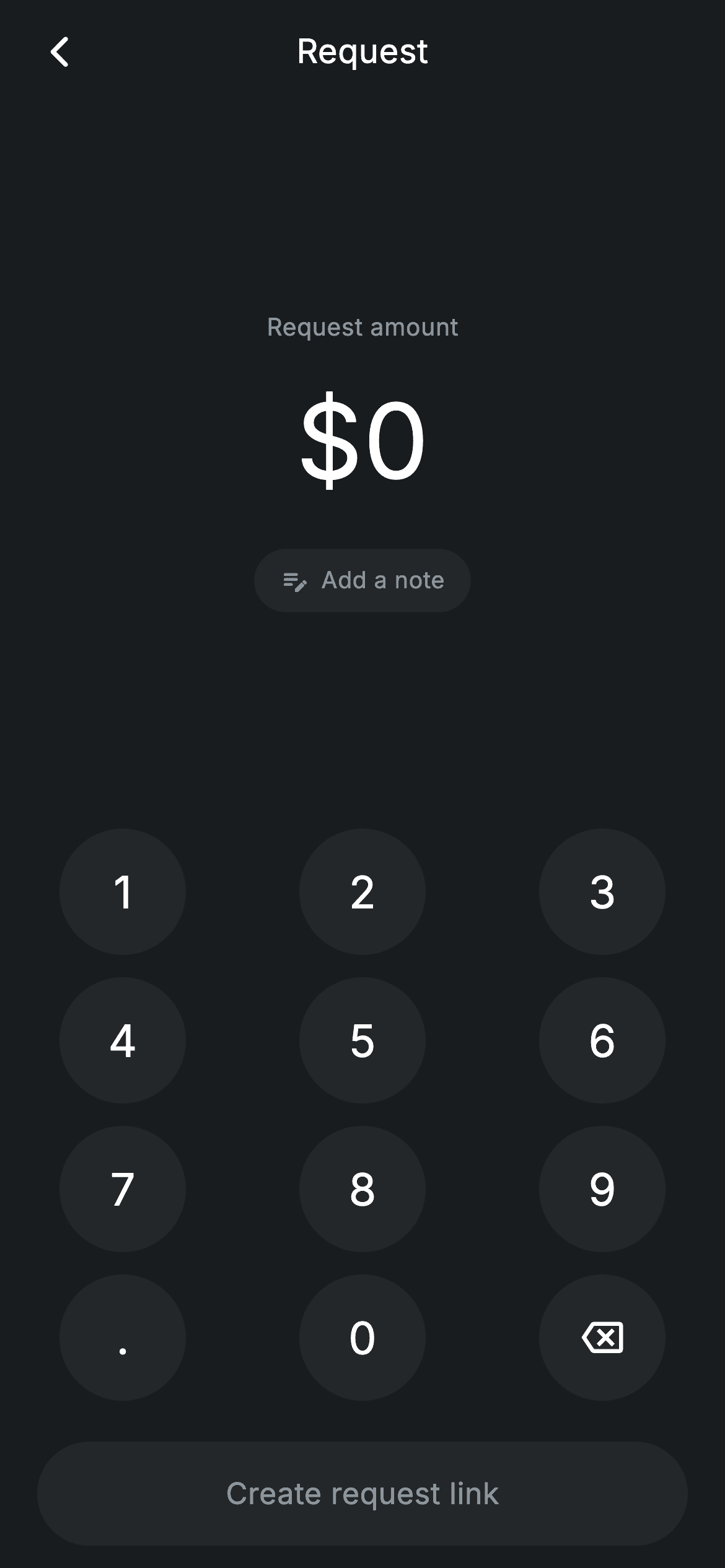
What you'll build
- ✓A 4x3 circular numpad (digits, decimal point, backspace) built from two small stateless widgets
- ✓String-based amount editing that caps input at nine characters and two decimal places
- ✓A 56px dollar display that auto-shrinks via FittedBox instead of ever wrapping or clipping
- ✓A 'Create request link' pill that flips from grey #242729 to indigo #494FDF only when the amount is non-zero
- ✓A forced dark theme (#191C1F) that ignores the host app's light mode
Step-by-step build
Create the file
Add a new file at lib/fintech_request_money/fintech_request_money_screen.dart in your Flutter project.
Register the bundled fonts
No external packages — this is pure Flutter. It does bundle its design font (Inter), so drop the font file into fonts/ and declare it in pubspec.yaml:
flutter:
  fonts:
    - family: Inter
      fonts:
- asset: fonts/Inter-Regular.ttfBuild it, piece by piece
Here's how the screen goes together. Each block below is a real slice of the code with a plain-English explanation — paste them in order, or grab the whole file from the next section.
One string of state and a four-colour palette
import 'package:flutter/material.dart';

/// Request money — enter an amount to request (Revolut-inspired design system).
///
/// Self-contained per CONVENTIONS.md: pure Flutter only, the exact design font
/// (Inter) is bundled under `fonts/`, no network images, and the screen forces
/// its own dark theme. The numpad drives live amount state and an optional note
/// chip lets the user label the request.
class FintechRequestMoneyScreen extends StatefulWidget {
  const FintechRequestMoneyScreen({super.key, this.onBack, this.onContinue});

  final VoidCallback? onBack;
  final VoidCallback? onContinue;

  @override
  State<FintechRequestMoneyScreen> createState() =>
      _FintechRequestMoneyScreenState();
}

class _FintechRequestMoneyScreenState extends State<FintechRequestMoneyScreen> {
  static const String _font = 'Inter';
  static const Color _bg = Color(0xFF191C1F);
  static const Color _surface = Color(0xFF242729);
  static const Color _brand = Color(0xFF494FDF);
  static const Color _muted = Color(0xFF8D969E);

  String _amount = '0';
`FintechRequestMoneyScreen` is a `StatefulWidget` taking two optional callbacks, `onBack` and `onContinue`, so it drops into any navigator without owning routing. The entire screen state is a single `String _amount = '0'` — a string, not a double, because the display must preserve intermediate keystrokes like '12.' that no numeric type can represent, and because appending characters is exactly what a numpad does. Four static const colours define the look: `_bg` #191C1F for the near-black canvas, `_surface` #242729 for keys, chip and the disabled button, `_brand` #494FDF indigo for the one moment of colour, and `_muted` #8D969E for secondary text. `_font` pins everything to the bundled Inter face.
The numpad brain: backspace, decimal guard, length caps
  void _onKey(String key) {
    setState(() {
      switch (key) {
        case '⌫':
          _amount = _amount.length <= 1
              ? '0'
              : _amount.substring(0, _amount.length - 1);
        case '.':
          if (!_amount.contains('.')) {
            _amount = '$_amount.';
          }
        default:
          if (_amount == '0') {
            _amount = key;
          } else if (_amount.length < 9) {
            final int dot = _amount.indexOf('.');
            if (dot == -1 || _amount.length - dot <= 2) {
              _amount = '$_amount$key';
            }
          }
      }
    });
  }
`_onKey` is a Dart 3 switch over the pressed key with three arms. Backspace ('⌫') trims the last character but collapses back to '0' once one character remains, so the display never goes empty. The '.' case appends a decimal point only if `_amount` doesn't already contain one — tapping '.' twice is simply ignored. The digit default does three checks in order: if the amount is still '0' the digit replaces it (no '05'), the total length is capped at 9 characters so the string can never outgrow the layout's tolerance, and `_amount.length - dot <= 2` refuses a third digit after the decimal point, which is what makes '12.345' impossible. All of it sits inside one `setState`, so every keypress repaints the display and re-evaluates the button.
A forced dark theme and a four-slot column
  @override
  Widget build(BuildContext context) {
    return Theme(
      data: ThemeData.dark(useMaterial3: true),
      child: Scaffold(
        backgroundColor: _bg,
        body: SafeArea(
          child: Column(
            children: <Widget>[
              _buildAppBar(),
              Expanded(child: _buildAmount()),
              _Numpad(onKey: _onKey),
              const SizedBox(height: 16),
              _buildButton(),
            ],
          ),
        ),
      ),
    );
  }
The build wraps its `Scaffold` in `Theme(data: ThemeData.dark(useMaterial3: true))`, so the screen stays dark even inside a light-themed host app — ripples, icons and defaults all inherit the dark scheme rather than fighting it. Inside `SafeArea`, a plain `Column` stacks the four regions: app bar, amount, numpad, button. Only the amount sits in an `Expanded`, which is the layout's one clever move — the numpad and button take their natural heights at the bottom, and the amount centres itself in whatever vertical space is left over, so the composition adapts to any phone height without a single hard-coded gap between regions.
A centred title without an AppBar widget
  Widget _buildAppBar() {
    return Padding(
      padding: const EdgeInsets.fromLTRB(8, 4, 8, 4),
      child: Row(
        children: <Widget>[
          IconButton(
            onPressed: widget.onBack,
            icon: const Icon(Icons.arrow_back_ios_new_rounded,
                size: 20, color: Colors.white),
          ),
          const Expanded(
            child: Text(
              'Request',
              textAlign: TextAlign.center,
              style: TextStyle(
                fontFamily: _font,
                fontSize: 18,
                fontWeight: FontWeight.w500,
                letterSpacing: 0.24,
                color: Colors.white,
              ),
            ),
          ),
          const SizedBox(width: 48),
        ],
      ),
    );
  }
The header skips Material's `AppBar` entirely: a `Row` holds the `arrow_back_ios_new_rounded` back button wired to `widget.onBack`, then 'Request' in an `Expanded` with `textAlign: TextAlign.center`, then `const SizedBox(width: 48)`. That trailing 48px box is the trick — it mirrors the width of an `IconButton` on the left, so the centred text is optically centred on the screen rather than centred in the leftover space, which would shove it a few pixels right. The title is 18px `w500` with the file's signature `letterSpacing: 0.24`, a spacing value repeated on every text style in the screen.
FittedBox keeps nine digits on one line
  Widget _buildAmount() {
    return Center(
      child: Column(
        mainAxisAlignment: MainAxisAlignment.center,
        mainAxisSize: MainAxisSize.min,
        children: <Widget>[
          const Text(
            'Request amount',
            style: TextStyle(
              fontFamily: _font,
              fontSize: 13,
              letterSpacing: 0.24,
              color: _muted,
            ),
          ),
          const SizedBox(height: 12),
          FittedBox(
            fit: BoxFit.scaleDown,
            child: Text(
              '\$$_amount',
              style: const TextStyle(
                fontFamily: _font,
                fontSize: 56,
                fontWeight: FontWeight.w500,
                letterSpacing: 0.24,
                color: Colors.white,
              ),
            ),
          ),
          const SizedBox(height: 18),
          Container(
            padding: const EdgeInsets.symmetric(horizontal: 14, vertical: 8),
            decoration: BoxDecoration(
              color: _surface,
              borderRadius: BorderRadius.circular(9999),
            ),
            child: Row(
              mainAxisSize: MainAxisSize.min,
              children: const <Widget>[
                Icon(Icons.edit_note_rounded, size: 16, color: _muted),
                SizedBox(width: 6),
                Text(
                  'Add a note',
                  style: TextStyle(
                    fontFamily: _font,
                    fontSize: 12.5,
                    fontWeight: FontWeight.w500,
                    letterSpacing: 0.24,
                    color: _muted,
                  ),
                ),
              ],
            ),
          ),
        ],
      ),
    );
  }
The amount block is a min-sized `Column` inside `Center`: a 13px `_muted` 'Request amount' label, then the money itself. `'\$$_amount'` renders at a huge 56px `w500`, and wrapping that Text in `FittedBox(fit: BoxFit.scaleDown)` is what makes the screen survive its own input rules — a short '5' renders at full 56px, while a maxed-out '123456.78' scales down just enough to fit the width, never wrapping and never ellipsising. Below it sits the 'Add a note' chip: a `_surface` Container with `BorderRadius.circular(9999)` (the effectively-infinite radius that guarantees a pill at any height), a 16px `edit_note_rounded` icon and 12.5px muted text, with `mainAxisSize: MainAxisSize.min` so the pill hugs its content.
A button that argues with invalid input by staying grey
  Widget _buildButton() {
    final bool valid = _amount != '0' && _amount != '0.';
    return Padding(
      padding: const EdgeInsets.fromLTRB(20, 0, 20, 12),
      child: SizedBox(
        width: double.infinity,
        height: 56,
        child: Material(
          color: valid ? _brand : _surface,
          borderRadius: BorderRadius.circular(9999),
          child: InkWell(
            borderRadius: BorderRadius.circular(9999),
            onTap: valid ? widget.onContinue : null,
            child: Center(
              child: Text(
                'Create request link',
                style: TextStyle(
                  fontFamily: _font,
                  fontSize: 16,
                  fontWeight: FontWeight.w500,
                  letterSpacing: 0.24,
                  color: valid ? Colors.white : _muted,
                ),
              ),
            ),
          ),
        ),
      ),
    );
  }
}
`_buildButton` derives `valid = _amount != '0' && _amount != '0.'` — the second comparison matters, because the decimal case in `_onKey` happily turns '0' into '0.', which looks like progress but is still zero dollars. Rather than a `FilledButton`, the CTA is a hand-rolled `Material` + `InkWell` pair, both given the same `BorderRadius.circular(9999)` so the ripple clips to the pill instead of flashing square corners. Every visual carries the validity: the fill flips `_surface` grey to `_brand` indigo, the label flips `_muted` to white, and `onTap` becomes `null` when invalid so the dead button also stops rippling. The `SizedBox` fixes it at 56px tall and full width inside 20px side padding.
The numpad is data plus two collection-fors
class _Numpad extends StatelessWidget {
  const _Numpad({required this.onKey});

  final ValueChanged<String> onKey;

  static const List<List<String>> _rows = <List<String>>[
    <String>['1', '2', '3'],
    <String>['4', '5', '6'],
    <String>['7', '8', '9'],
    <String>['.', '0', '⌫'],
  ];

  @override
  Widget build(BuildContext context) {
    return Padding(
      padding: const EdgeInsets.symmetric(horizontal: 32),
      child: Column(
        mainAxisSize: MainAxisSize.min,
        children: <Widget>[
          for (final List<String> row in _rows)
            Padding(
              padding: const EdgeInsets.symmetric(vertical: 6),
              child: Row(
                mainAxisAlignment: MainAxisAlignment.spaceBetween,
                children: <Widget>[
                  for (final String key in row)
                    _NumKey(label: key, onTap: () => onKey(key)),
                ],
              ),
            ),
        ],
      ),
    );
  }
}
`_Numpad` keeps the key layout as a `static const List<List<String>>` — three digit rows plus a final `['.', '0', '⌫']` row — so reordering keys is a data edit, not a widget rewrite. The build is two nested collection-for loops: the outer one emits a `Padding(vertical: 6)` per row, the inner one a `_NumKey` per label, with `MainAxisAlignment.spaceBetween` letting each row spread its three keys across the available width inside the 32px horizontal padding. Every key funnels back through the single `onKey` callback, so the numpad itself is completely stateless — it renders labels and reports taps, and all interpretation lives in the parent's `_onKey`.
One key widget, 68px of honest tap target
class _NumKey extends StatelessWidget {
  const _NumKey({required this.label, required this.onTap});

  final String label;
  final VoidCallback onTap;

  @override
  Widget build(BuildContext context) {
    final bool isBackspace = label == '⌫';
    return GestureDetector(
      onTap: onTap,
      behavior: HitTestBehavior.opaque,
      child: Container(
        width: 68,
        height: 68,
        decoration: const BoxDecoration(
          shape: BoxShape.circle,
          color: _FintechRequestMoneyScreenState._surface,
        ),
        alignment: Alignment.center,
        child: isBackspace
            ? const Icon(Icons.backspace_outlined, size: 22, color: Colors.white)
            : Text(
                label,
                style: const TextStyle(
                  fontFamily: _FintechRequestMoneyScreenState._font,
                  fontSize: 24,
                  fontWeight: FontWeight.w500,
                  letterSpacing: 0.24,
                  color: Colors.white,
                ),
              ),
      ),
    );
  }
}
`_NumKey` is a `GestureDetector` around a 68x68 circular Container — comfortably past the 48px minimum touch size — filled with the shared `_surface` colour, which it reaches via `_FintechRequestMoneyScreenState._surface` rather than duplicating the hex. `behavior: HitTestBehavior.opaque` is small but essential: without it, taps landing on the transparent padding around the glyph would fall through and the key would only respond to hits on the character itself. The label check `label == '⌫'` swaps the Text for a 22px `backspace_outlined` icon, so the backspace key gets a proper glyph while every digit renders as 24px `w500` Inter.
Full code
The complete, ready-to-paste source. Free to use in your projects — one click copies it all.
import 'package:flutter/material.dart';

/// Request money — enter an amount to request (Revolut-inspired design system).
///
/// Self-contained per CONVENTIONS.md: pure Flutter only, the exact design font
/// (Inter) is bundled under `fonts/`, no network images, and the screen forces
/// its own dark theme. The numpad drives live amount state and an optional note
/// chip lets the user label the request.
class FintechRequestMoneyScreen extends StatefulWidget {
  const FintechRequestMoneyScreen({super.key, this.onBack, this.onContinue});

  final VoidCallback? onBack;
  final VoidCallback? onContinue;

  @override
  State<FintechRequestMoneyScreen> createState() =>
      _FintechRequestMoneyScreenState();
}

class _FintechRequestMoneyScreenState extends State<FintechRequestMoneyScreen> {
  static const String _font = 'Inter';
  static const Color _bg = Color(0xFF191C1F);
  static const Color _surface = Color(0xFF242729);
  static const Color _brand = Color(0xFF494FDF);
  static const Color _muted = Color(0xFF8D969E);

  String _amount = '0';

  void _onKey(String key) {
    setState(() {
      switch (key) {
        case '⌫':
          _amount = _amount.length <= 1
              ? '0'
              : _amount.substring(0, _amount.length - 1);
        case '.':
          if (!_amount.contains('.')) {
            _amount = '$_amount.';
          }
        default:
          if (_amount == '0') {
            _amount = key;
          } else if (_amount.length < 9) {
            final int dot = _amount.indexOf('.');
            if (dot == -1 || _amount.length - dot <= 2) {
              _amount = '$_amount$key';
            }
          }
      }
    });
  }

  @override
  Widget build(BuildContext context) {
    return Theme(
      data: ThemeData.dark(useMaterial3: true),
      child: Scaffold(
        backgroundColor: _bg,
        body: SafeArea(
          child: Column(
            children: <Widget>[
              _buildAppBar(),
              Expanded(child: _buildAmount()),
              _Numpad(onKey: _onKey),
              const SizedBox(height: 16),
              _buildButton(),
            ],
          ),
        ),
      ),
    );
  }

  Widget _buildAppBar() {
    return Padding(
      padding: const EdgeInsets.fromLTRB(8, 4, 8, 4),
      child: Row(
        children: <Widget>[
          IconButton(
            onPressed: widget.onBack,
            icon: const Icon(Icons.arrow_back_ios_new_rounded,
                size: 20, color: Colors.white),
          ),
          const Expanded(
            child: Text(
              'Request',
              textAlign: TextAlign.center,
              style: TextStyle(
                fontFamily: _font,
                fontSize: 18,
                fontWeight: FontWeight.w500,
                letterSpacing: 0.24,
                color: Colors.white,
              ),
            ),
          ),
          const SizedBox(width: 48),
        ],
      ),
    );
  }

  Widget _buildAmount() {
    return Center(
      child: Column(
        mainAxisAlignment: MainAxisAlignment.center,
        mainAxisSize: MainAxisSize.min,
        children: <Widget>[
          const Text(
            'Request amount',
            style: TextStyle(
              fontFamily: _font,
              fontSize: 13,
              letterSpacing: 0.24,
              color: _muted,
            ),
          ),
          const SizedBox(height: 12),
          FittedBox(
            fit: BoxFit.scaleDown,
            child: Text(
              '\$$_amount',
              style: const TextStyle(
                fontFamily: _font,
                fontSize: 56,
                fontWeight: FontWeight.w500,
                letterSpacing: 0.24,
                color: Colors.white,
              ),
            ),
          ),
          const SizedBox(height: 18),
          Container(
            padding: const EdgeInsets.symmetric(horizontal: 14, vertical: 8),
            decoration: BoxDecoration(
              color: _surface,
              borderRadius: BorderRadius.circular(9999),
            ),
            child: Row(
              mainAxisSize: MainAxisSize.min,
              children: const <Widget>[
                Icon(Icons.edit_note_rounded, size: 16, color: _muted),
                SizedBox(width: 6),
                Text(
                  'Add a note',
                  style: TextStyle(
                    fontFamily: _font,
                    fontSize: 12.5,
                    fontWeight: FontWeight.w500,
                    letterSpacing: 0.24,
                    color: _muted,
                  ),
                ),
              ],
            ),
          ),
        ],
      ),
    );
  }

  Widget _buildButton() {
    final bool valid = _amount != '0' && _amount != '0.';
    return Padding(
      padding: const EdgeInsets.fromLTRB(20, 0, 20, 12),
      child: SizedBox(
        width: double.infinity,
        height: 56,
        child: Material(
          color: valid ? _brand : _surface,
          borderRadius: BorderRadius.circular(9999),
          child: InkWell(
            borderRadius: BorderRadius.circular(9999),
            onTap: valid ? widget.onContinue : null,
            child: Center(
              child: Text(
                'Create request link',
                style: TextStyle(
                  fontFamily: _font,
                  fontSize: 16,
                  fontWeight: FontWeight.w500,
                  letterSpacing: 0.24,
                  color: valid ? Colors.white : _muted,
                ),
              ),
            ),
          ),
        ),
      ),
    );
  }
}

class _Numpad extends StatelessWidget {
  const _Numpad({required this.onKey});

  final ValueChanged<String> onKey;

  static const List<List<String>> _rows = <List<String>>[
    <String>['1', '2', '3'],
    <String>['4', '5', '6'],
    <String>['7', '8', '9'],
    <String>['.', '0', '⌫'],
  ];

  @override
  Widget build(BuildContext context) {
    return Padding(
      padding: const EdgeInsets.symmetric(horizontal: 32),
      child: Column(
        mainAxisSize: MainAxisSize.min,
        children: <Widget>[
          for (final List<String> row in _rows)
            Padding(
              padding: const EdgeInsets.symmetric(vertical: 6),
              child: Row(
                mainAxisAlignment: MainAxisAlignment.spaceBetween,
                children: <Widget>[
                  for (final String key in row)
                    _NumKey(label: key, onTap: () => onKey(key)),
                ],
              ),
            ),
        ],
      ),
    );
  }
}

class _NumKey extends StatelessWidget {
  const _NumKey({required this.label, required this.onTap});

  final String label;
  final VoidCallback onTap;

  @override
  Widget build(BuildContext context) {
    final bool isBackspace = label == '⌫';
    return GestureDetector(
      onTap: onTap,
      behavior: HitTestBehavior.opaque,
      child: Container(
        width: 68,
        height: 68,
        decoration: const BoxDecoration(
          shape: BoxShape.circle,
          color: _FintechRequestMoneyScreenState._surface,
        ),
        alignment: Alignment.center,
        child: isBackspace
            ? const Icon(Icons.backspace_outlined, size: 22, color: Colors.white)
            : Text(
                label,
                style: const TextStyle(
                  fontFamily: _FintechRequestMoneyScreenState._font,
                  fontSize: 24,
                  fontWeight: FontWeight.w500,
                  letterSpacing: 0.24,
                  color: Colors.white,
                ),
              ),
      ),
    );
  }
}
Plus bundled 1 binary asset (fonts/images). The CLI and MCP install those for you automatically.
Two faster ways to add it
Copy-paste works, but you can skip it entirely.
1. FlutterKit CLI
One command drops this screen — and its fonts — straight into your project.
$ flutterkit add fintech-request-money2. AI agent (MCP)
Connect FlutterKit's MCP server in Claude or Cursor and just ask your agent to install fintech-request-money — it fetches and writes the files for you.
FAQ
Is this request money screen free to use in a commercial app?
Yes. FlutterKit screens are free, including for commercial products — copy the code from this page or install it via the CLI, ship it in a paid app, and you owe nothing. No licence key and no attribution required.
Does this screen need any packages or font setup?
No third-party packages — it is pure Flutter, `package:flutter/material.dart` and nothing else. The Inter font it references via `fontFamily: 'Inter'` is bundled with the screen at `lib/fintech_request_money/fonts/Inter.ttf`, so declare that one asset in your pubspec and the typography matches the design exactly.
Which Flutter version does this code require?
A recent stable — Flutter 3.10 or newer. The constructor uses super parameters (`super.key`) and `_onKey` is written as a Dart 3 switch whose cases have no `break` statements, which only compiles on Dart 3. There is no `Color.withValues` here, so nothing needs an `withOpacity` swap for slightly older SDKs.
Why is the amount a String instead of a double?
Because the user types characters, not numbers. A double cannot represent the in-progress state '12.' and would reformat '12.50' to 12.5, and floating point would eventually misbehave on money anyway. Keeping a string makes every rule — leading-zero replacement, one decimal point, two decimal places, the nine-character cap — a cheap string check. Parse it to an int of cents only at the moment you fire the actual request.
Why build a custom numpad instead of using a TextField?
A TextField brings the system keyboard, a cursor, selection handles and platform-specific autocorrect — all wrong for amount entry. The custom `_Numpad` gives you fixed 68px circular keys that match the design, and because every rule lives in `_onKey`, invalid input is impossible rather than validated after the fact. The trade-off is that you must add anything else you need, such as haptic feedback, yourself.


